

Finding Orders
To view an order, you must first find it in the Global-e database using the search parameters shown below: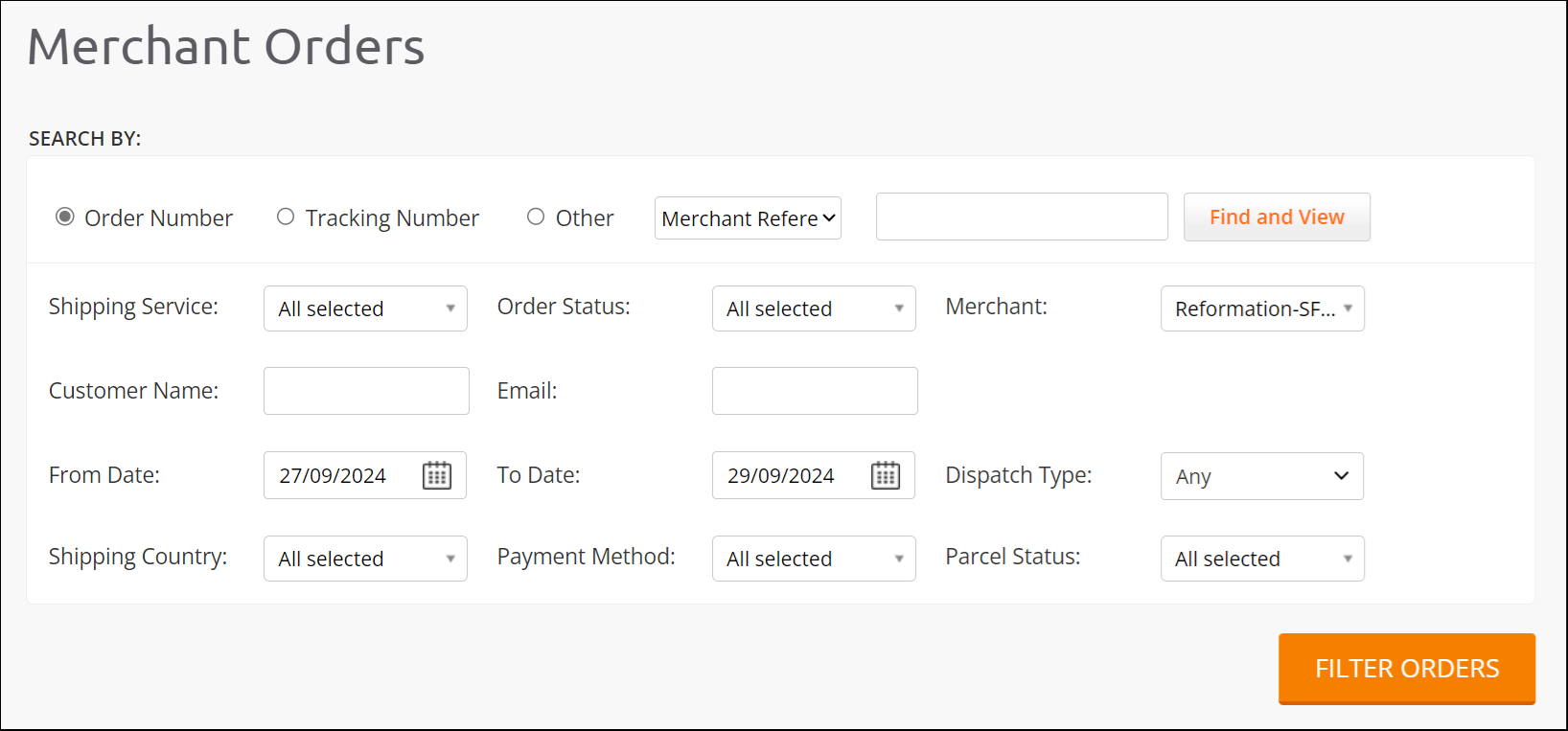
- Navigate to Orders > View Orders from the Orders menu.
-
Search by one of the following parameters:
- Order number
- Tracking number
- Other
-
Define all of the required following filters:
-
Do one of the following:
- Go directly to the Managing Order Details page - click Find and View.
-
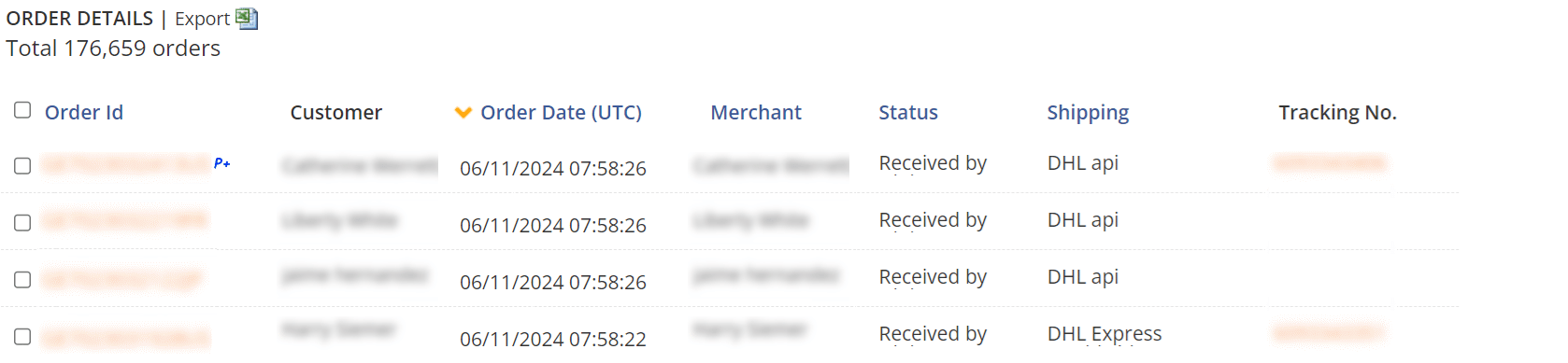
View all found order IDs in the Order Details section - clickFILTER ORDERS.
If needed, from here you can export the table by clicking Export.
-
Optional - Toggle between the following views:
- Default - Shows the order details corresponding to your search results above.
- Shipping errors - Shows the shipping errors corresponding to your search results above.
-
Select an Order IDfrom the Order Details section:
Managing Order Details
If you know your order ID, you can go directly to your Order Details tab.-
Follow steps 1 through 4 in Finding Orders (previous procedure).
The Order Details for the Order ID you selected is displayed the following tabs, each described in their own section.
- Click one of the tabs as needed:
General
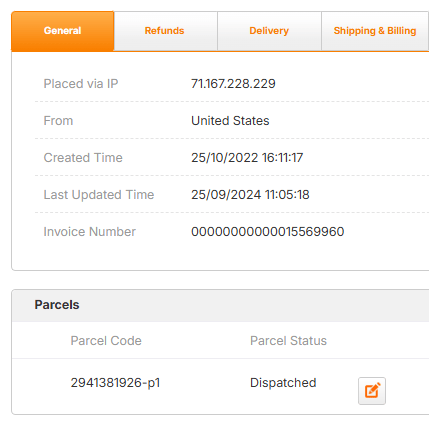
The main area of the General tab shows the IP address, country of origin, order creation time, invoice number, order status, tracking number, waybill, and links to the order’s printable documents. The following figure shows the General tab:Basic Information
This section includes the following information:| Field | Description | ||
|---|---|---|---|
| Placed via IP | The user’s IP address | ||
| From | The country of origin | ||
| Created Time | The time and date that the order was created | ||
| Last Updated Time | The time and date that the order was last updated | ||
| Invoice Number | The order’s invoice number | ||
| Order Status | You can change the order status by clicking  and selecting one of the following and clicking and selecting one of the following and clicking  : :Approved by MerchantCanceled by CustomerCanceled by Global-eCanceled by MerchantChargebackConfirmed by MerchantCreatedDispatched by MerchantDispatched to CustomerFailed transfer to MerchantFailed transfer to ShippingFraud check challengedFraud checked failedFailed transfer to ShippingFraud check challengedFraud check failedLost by MerchantLost by ShipperOn hold by HubOn hold by Global-ePayment declinedPending paymentReceived by Global-eShipped fully by MerchantShipped partially by MerchantTo be replaced | Approved by Merchant Canceled by Customer Canceled by Global-e Canceled by Merchant Chargeback Confirmed by Merchant Created Dispatched by Merchant Dispatched to Customer Failed transfer to Merchant Failed transfer to Shipping Fraud check challenged Fraud checked failed | Failed transfer to Shipping Fraud check challenged Fraud check failed Lost by Merchant Lost by Shipper On hold by Hub On hold by Global-e Payment declined Pending payment Received by Global-e Shipped fully by Merchant Shipped partially by Merchant To be replaced |
| Approved by Merchant Canceled by Customer Canceled by Global-e Canceled by Merchant Chargeback Confirmed by Merchant Created Dispatched by Merchant Dispatched to Customer Failed transfer to Merchant Failed transfer to Shipping Fraud check challenged Fraud checked failed | Failed transfer to Shipping Fraud check challenged Fraud check failed Lost by Merchant Lost by Shipper On hold by Hub On hold by Global-e Payment declined Pending payment Received by Global-e Shipped fully by Merchant Shipped partially by Merchant To be replaced | ||
| Tracking Number | The order’s tracking number, linked to an external shipping site. You can change this number by clicking , entering a new one, and clicking . | ||
| Waybill | The download link to the waybill displayed when an AWB (Airway Bill) has been uploaded. Click  to upload an AWB. to upload an AWB. | ||
| Order Documents | Links to related documents: Customer receiptDHL API Express Worldwide Airway BillInvoiceNo manifestOnly an AWB is available for this orderPrinted documents | Customer receipt DHL API Express Worldwide Airway Bill Invoice No manifest Only an AWB is available for this order Printed documents | |
| Customer receipt DHL API Express Worldwide Airway Bill Invoice No manifest Only an AWB is available for this order Printed documents |
Parcels
The Parcels section includes the following information:| Field | Description | ||
|---|---|---|---|
| Parcel Code | The order’s unique parcel codeNote: A part of an order not available at the time the order was made, each part is sent to the customer separately. When this occurs the item receives two parcel codes (e.g., 24100095133673-p1 and 24100095133673-p2). | ||
| Parcel Status | You can change the parcel status by clicking and selecting one of the following and clicking :: DamagedDelivered to CustomerDelivered to StoreDispatchedFailed transfer to ShippingLost by Global-eLost by MerchantLost by ShipperOn holdReceived in HubReturned by ShipperReturned to MerchantShipped by Merchant | Damaged Delivered to Customer Delivered to Store Dispatched Failed transfer to Shipping Lost by Global-e Lost by Merchant | Lost by Shipper On hold Received in Hub Returned by Shipper Returned to Merchant Shipped by Merchant |
| Damaged Delivered to Customer Delivered to Store Dispatched Failed transfer to Shipping Lost by Global-e Lost by Merchant | Lost by Shipper On hold Received in Hub Returned by Shipper Returned to Merchant Shipped by Merchant | ||
| Documents | A link to related documentation | ||
| Airway bill | A link to download your airway bill | ||
| Tracking number | The parcel’s tracking number, linked to an external shipping site. You can change this number by clicking , entering a new one, and clicking . | ||
| Action | The action taken on the order. |
Payment Details
The Payment Details section includes the following information. Some fields are not displayed based on the order status:Merchant Details
The Merchant Details section includes the following information:Shipping Details
The Shipping Details section includes the following information:| Field | Description |
|---|---|
| Total Shipping Price | The total shipping price |
| Clearance Fee | The shipping clearance fee |
| D&T Paid By Customer | Whether the customer was required to pay Duties and Taxes or not |
| US Sales Tax | The US sales tax |
| Shipped By | The name of the used shipping company. You can change this value by clicking , selecting a new one from the menu, and clicking . |
| Shipped From | The shipped item’s location of origin |
| To | The customer’s shipping address |
| Phone Number | The customer’s phone number |
| Shipping Email | The customer’s email address |
| Return Local Tracking Number | The customer’s local return tracking number. You can change this number by clicking , entering a new one, and clicking . |
| Return International Tracking Number | The customer’s international return tracking number. You can change this number by clicking , entering a new one, and clicking . |
Comments
You can view and leave important comments in the Comments section. When the reconciliation level is overridden by one of the following conditions, the reconciliation level reason is displayed in the Comments section:- Method of payment is Cash
- Order is paid with a gift card
- Order includes only Virtual Product(s)
- Order is set as IsNoEODManifest=1
- Orders to Malaysia
Items Ordered
Items Ordered Section
The actions you can take in the Items Ordered section of the page are directly tied to your order status, with different statuses enabling, disabling, or partially allowing certain functions. Some statuses grant full access to actions, such as View historyor Cancel order, while others allow them only in certain cases or restrict them entirely. Access patterns vary based on your order’s life cycle, as shown in the table below:
The Items Ordered section includes the following information:
At the very bottom of the tab you can create returns, reship, calculate taxes, send to merchant, cancel your order, and view your history.
Editing Product Attributes
From the General tab you can edit your product attributes. Note that you need Admin permissions to edit product attributes.- Navigate to Orders > View Orders from the top menu.
- Click General.
- Click Edit Product Attributes from the Items Orderedsection.The ordered items become editable.
- Select an item and click Edit Product Attributes.A checkbox is displayed to the left of each item.
-
Select the checkbox corresponding to all items that you want to edit.
If the item doesn’t have any attributes, a message is displayed that the selected item has no attributes.
Amending Order Products
If the order contains out-of-stock items, you must amend these items before printing the Airway Bill (AWB) and export documents. Amending the order via the Global‑e Merchant Portal:- Triggers an automatic refund of all the relevant amounts
- Updates export documents
- Updates the shipper’s AWB
- Sends an email to the customer, notifying them of out-of-stock items and refunds
- Complete steps 1 through 5 in Finding Orders.Completing Step 5 displays the Order Details page with the General tab selected by default.
- Scroll down to the Items Ordered section and click Amend Order Products.The item quantity value in the Units column is replaced with a field.
- Amend the quantity value in the field as needed.
- Click Save.
Replacing Order Products
If you want to replace an item instead of refunding the customer, you can replace an order product. If you are an Admin, verify that users have Merchant CS permissions and credentials. Before you can replace an order product you must verify that Global-e has set up the necessary configurations. Contact your Success Manager if you need help accessing the Global‑e Merchant Portal. To perform a replacement the order must have one of the following statuses:
Note that replacements request cannot be made for orders in Pending status.
This section includes the following procedures:
- Replacing an order product
- Cancelling a replacement (different than cancelling an order)
- Complete steps 1 through 5 in Finding Orders.Completing Step 5 displays the Order Details page with the General tab selected by default.
- Scroll down to the Items Ordered section and click Replace Order Products.
- Select one or multiple items to replace.
-
Click Replace Order Products.
One of the following occurs:
- **Default configuration:**Your website opens to the page of the product you want to replace.
- **Not configured or configured incorrectly:**Your website opens to the home page. Search for the item you want to send as a replacement.
-
Replace the item(s):
- Modify the current item’s attributes, selecting the relevant product attributes according to their exact specification (size, color, and more).
- Add the replacement item to the cart. You can add multiple items to the replacement order.
- ClickCheckout to proceed to your Ecommerce Platform Checkout page.
-
Click Global‑e Replacement Order to access the Global‑e Checkout.
The Global‑e replacement order button name and location vary for each merchant.
- The customer’s personal and address details are prefilled according to the details in the original order. If required, you can modify these details.
- You do not need to enter payment information.
-
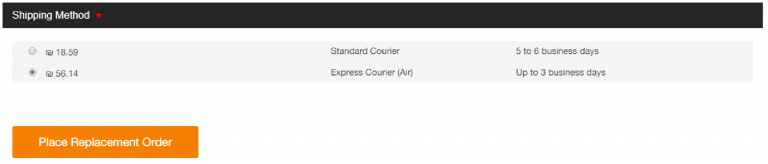
The Global-e page includes a Place Replacement Order button instead of the ecommerce platform pay/submit button.
- Review the customer’s personal details and modify them if needed.
- Select the shipping method to send the replacement order (this can be different from the one used to ship the original order).
-
Select to prepay duties and taxes when applicable.
Delivered Duty Unpaid (DDU) destinations can create expenses for customers and should be avoided if not intended. If Duties and Taxes are required and not prepaid, the customer may be requested to pay them to the shipper.
-
Click Place Replacement Order to create the replacement order.
The order confirmation page confirms that the replacement order has been created
At this stage, customers receive an email notification that their replacement order was created. The order is added to your ecommerce platform as a new order, indicating that this is a replacement order and not a regular order. If you do not want to include replacement orders in your sales reports, you may need to perform modifications on your ecommerce platform to ensure that they are not included in the sales reports.
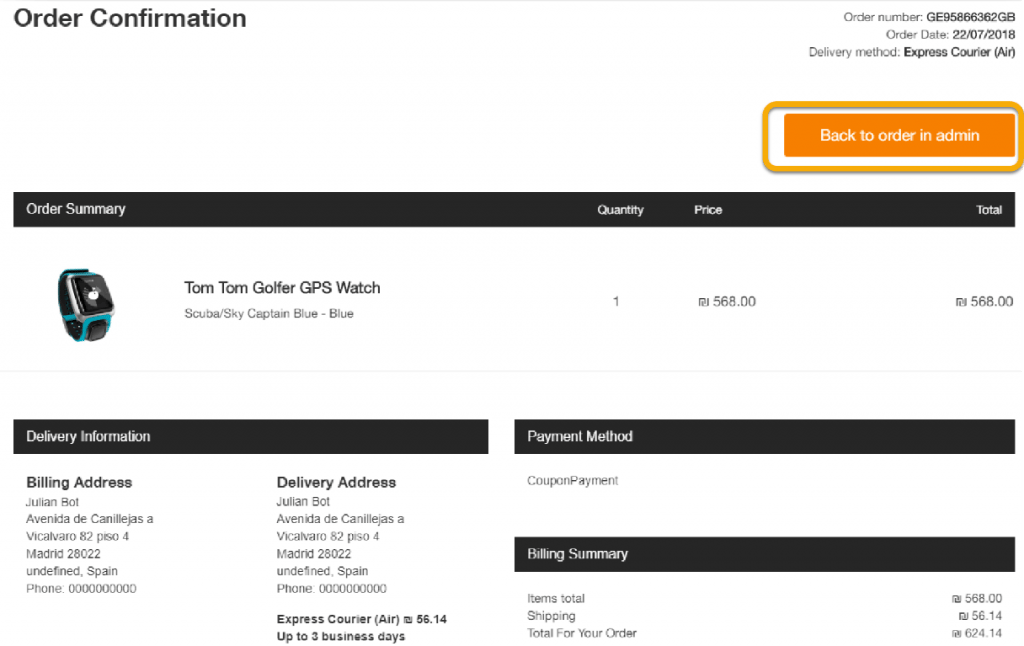
-
To view the original order or to cancel a replacement, click Back to order in Admin to return to the Global-e Merchant Portal.
Note that at the top of the order screen, the newly replaced order is flagged as a replacement order.

You can cancel a replacement after creating an order replacement (see Replacing Order Products) by clicking Cancel Replacement.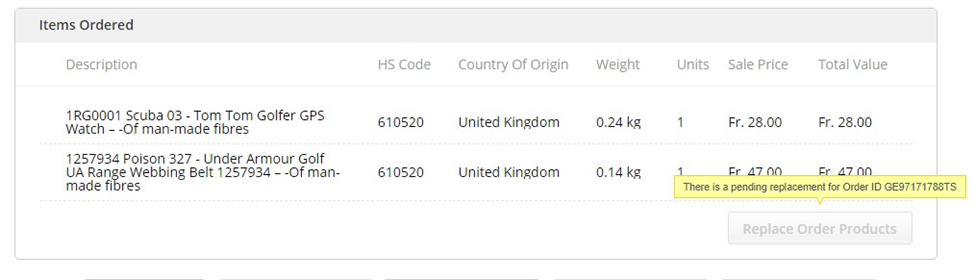
Creating Returns
You can create returns based on your order status, as shown in the table at the beginning of the Items Ordered section. In addition, you have the following role access to cancel orders:- Merchant CS Admin
- Hub Admin
- Hub Operator
- Complete steps 1 through 5 in Finding Orders.Completing Step 5 displays the Order Details page with the General tab selected by default.
- Scroll down to the Items Ordered section and click Create Return directly below it.The Returns page is displayed.
- Select a language from the Select Language on the right edge of the screen.The page is translated to the language you selected.
-
Find your order:
- Enter an order ID in the Order ID field.
- Enter an email address in the Email field. Note that Global-e cannot process a return before its order is dispatched.
- Click Create Return.
- From the Select Return Items page, select the products that you want to create a return on.
- Select a reason from the dropdown menu and click Next.The Create Return Label page is displayed.
- Record your RMA number and click Print label to download your return shipping label.
Reshipping Items
You can reship items based on your order status, as shown in the table at the beginning of the Items Ordered section.- Complete steps 1 through 5 in Finding Orders.Completing Step 5 displays the Order Details page with the General tab selected by default.
- Scroll down to the Items Ordered section and click ReShip directly below it.A message is displayed that the item has been reshipped successfully.
Calculating Taxes
The Calculating Taxes feature is only enabled if you have no prepaid taxes, and no Duties Subsidies. You can calculate an order’s taxes for items that have not yet been set to Dispatched, Complete/Closed, or Received in GE Hub. You can check the order status of your item by scrolling to the very top of the screen while in the General tab. The order status is shown on the right side of the page. If your order has already been confirmed, the Calc Taxes feature will not be displayed. Once an order is in statuses like “Dispatched,” “Complete/Closed,” or “Received in GE Hub,” actions like recalculating taxes are not available.- Complete steps 1 through 5 in Finding Orders.Completing Step 5 displays the Order Details page with the General tab selected by default.
- Scroll down to the Items Ordered section and click ReShip directly below it.A message is displayed that the item has been reshipped successfully.
Sending an Item to a Merchant
You can send an item to a merchant based on your order status, as shown in the table at the beginning of the Items Ordered section.- Complete steps 1 through 5 in Finding Orders.Completing Step 5 displays the Order Details page with the General tab selected by default.
- Scroll down to the Items Ordered section and click Send to merchant directly below it.The item is sent to the merchant.
Cancelling Orders
Only Global-e and merchants can cancel orders based on the status of the order as shown in the table at the beginning of the Items Ordered section. In addition, you have the following role access to cancel orders:- Merchant CS Admin
- Hub operator (at any hub, including Global-e operated hubs)
- Hub admin (at any hub, including Global-e operated hubs)
- Sends an email to the customer notifying him about the cancellation
- Triggers an automatic and full order refund
- Complete steps 1 through 5 in Finding Orders.Completing Step 5 displays the Order Details page with the General tab selected by default.
- Scroll down to the Items Ordered section and click Cancel Order.
-
Select a cancelation reason from the dropdown menu:
- Select or clear Don’t send an email to the customer.
- Click Save.
Viewing Your History
Sometimes an order must be cancelled, such as if all of the line items are out of stock, or the order consists of one line item that is out of stock. In these cases, the entire order should be canceled.- Complete steps 1 through 5 in Finding Orders.Completing Step 5 displays the Order Details page with the General tab selected by default.
- Scroll down to the Items Ordered section and click History.
-
Optional - Toggle between the following views:
- Default - Shows the order details corresponding to your search results above.
- Shipping errors - Shows the shipping errors corresponding to your search results above.
- Click Create Ticket.
Exporting an Accompanying Document
If you ship orders from Germany to outside the EU worth €1,000 or more, you’ll need an Export Accompanying Document (EAD). The EAD is created through the Automated Tariff and Local Customs Clearance System (ATLAS) via the German software company, AEB, and you’ll be notified when it’s ready. Make sure to wait for the EAD before sending orders to fulfillment to avoid potential delays.Issuing a Refund
Issuing a refund is described in Issuing a Refund.Adding a Refund
From the Order Refunds region you add refunds.- Follow steps 1 through 4 in Finding Orders.
- Select Refunds.
- Click Add Refund.
Adding Carrier Claims
From the Carrier Claims region you add carrier claims.- Follow steps 1 through 4 in Finding Orders.
- Select Refunds.
- Click Add Claim.
Delivery
From the Delivery tab you can view information related to delivery and the item’s delivery history. The following figure shows the Delivery tab: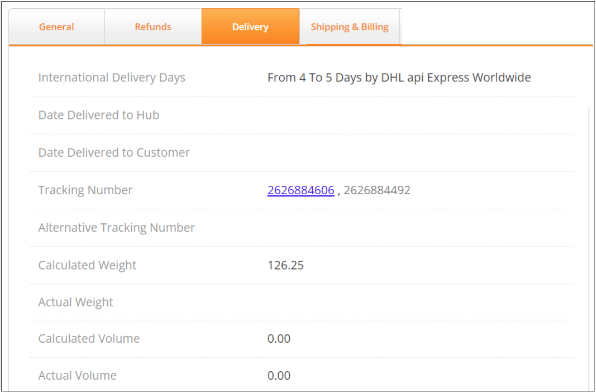
In the Delivery History region near the bottom of the tab, you can view the item’s delivery history by selecting the view:
- Order level
- Parcel level
You can return to the Order Details page by clicking Back to Search Results.
Shipping and Billing
From the Shipping & Billing tab you can manage your shipping information: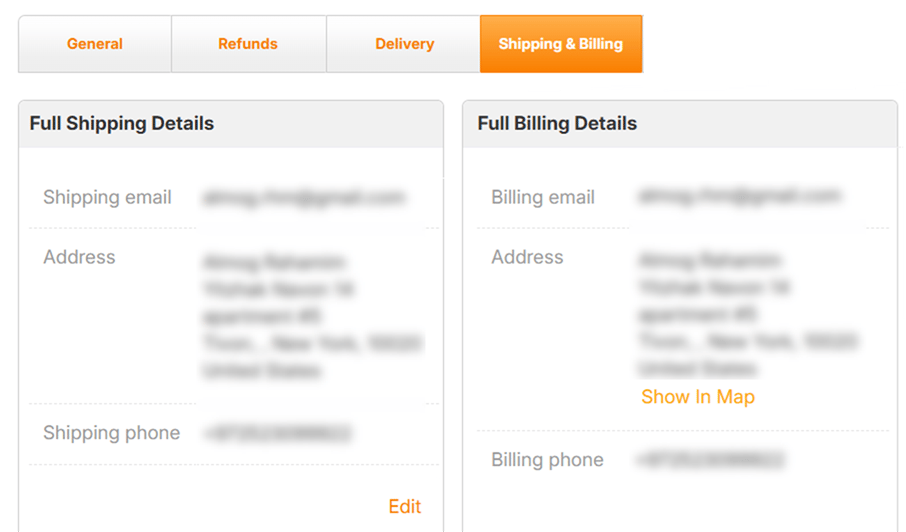
- Received in Hub – the orders are shipped from the Global‑e hub
- Shipped by Merchant – the orders are shipped directly from the merchant’s hub
- View your shipping and billing details (shown above)
- Edit your shipping details
- Send an email to the merchant that the address is incorrect
- View the location on Google Maps and zip code (for help solving issues with the address or postal code)
- Cancel an order
- View history
-
Use the DHL capability tool
If an API address error occurred, the order status changes to Failed Transfer to Shipping. When this happens, click Show in Map to locate the address using Google Maps. This can help you correct issues such as postal code, spelling mistakes in the street or city name, and more.
Full Shipping Details
Editing Your Shipping Details
Users with admin permissions can edit shipping details. You may need to change the customer’s shipping address if:- The customer requests to change the destination of the order.
- The shipper’s API returns an error that something went wrong with processing the address. This may be due to an out-of-date postal code, misspelled address, or missing information.
- Received in Hub – the orders are shipped from the Global‑e hub.
- Shipped by Merchant – the orders are shipped directly from the merchant’s hub.
You can only edit your shipping details until the order is ready to be dispatched.
- From the Full Shipping Details region, click Edit.The full shipping detail fields are displayed.Note that if there is an API address error, the order status changes to Failed Transfer to Shipping. When this happens, click Show in Map in the Full Billing Details or Tools area to locate the address using Google Maps. This can help you correct issues such as postal code, spelling mistakes in the street or city name, and more.
- Modify the details as needed.
-
Do one of the following:
- Click Save to save your modifications.
- Click Save and reship if you have already issued an airway bill for this order (as part of the fulfillment process). Your modifications are saved and a new airway bill with the updated address is issued. Remember to replace the old airway bill with the updated version before DHL picks up the order.
Notifying Merchants of an Incorrect Email Address
From this tab you can send an email to the merchant that the address is incorrect, if needed. You can do this by clicking Send Email from the Full Shipping Details panel. When you do this, the message Sent incorrect address email is displayed: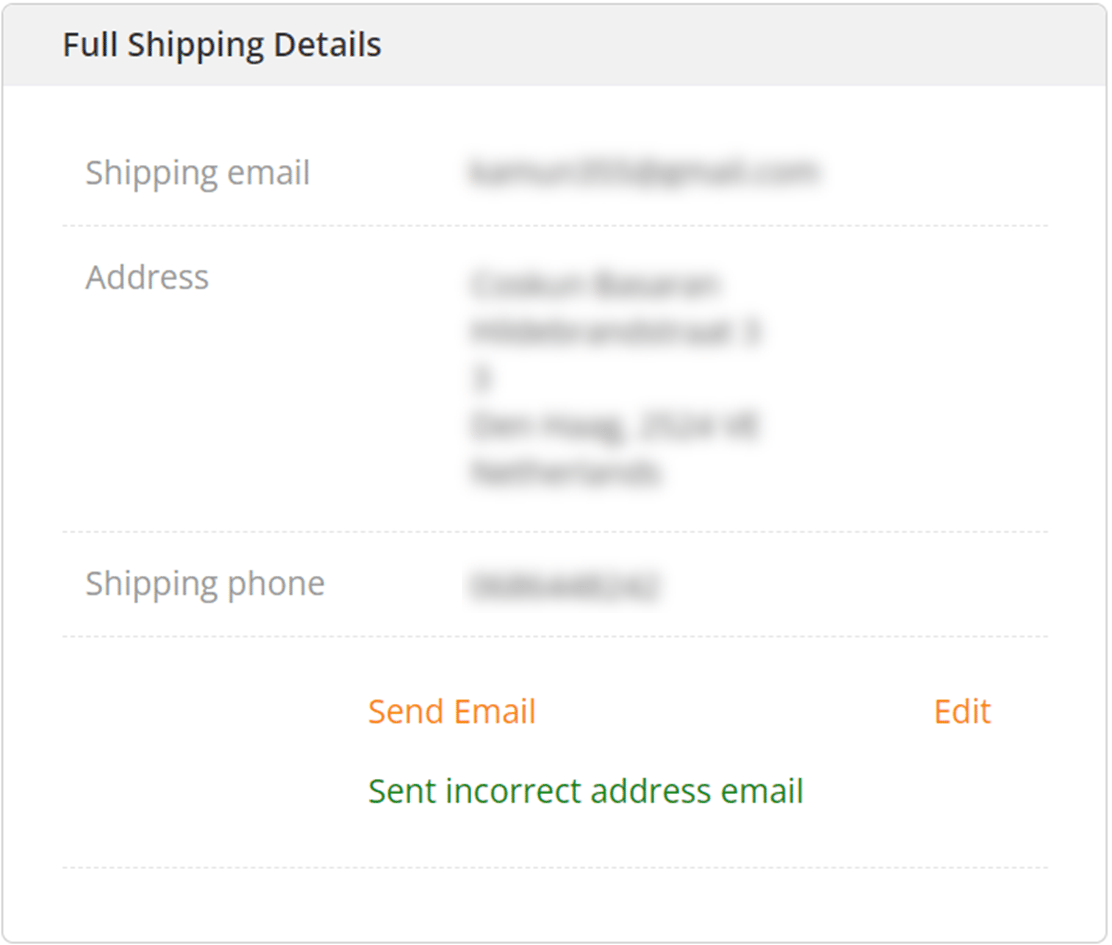
Full Billing Details
From the Full Billing Details region you can view the billing address in Google Maps by clicking Show In Map.Tools
From the Tools section you can do the following:- View your address in Google Maps
- Use the Capability Tool
- View the Shipper Locater
- Look up zip codes
Cancelling Orders or Out-of-Stock Items
For details about cancelling an order in Shopify, see the Shopify Native Cancel an Order section.