

- Checkout ID — The unique ID associated with a Shopify checkout session.
- Payment Attempt — Used to search for individual attempts of processing a payment.
- PSP Reference — The reference number provided by the Payment Service Provider (PSP).
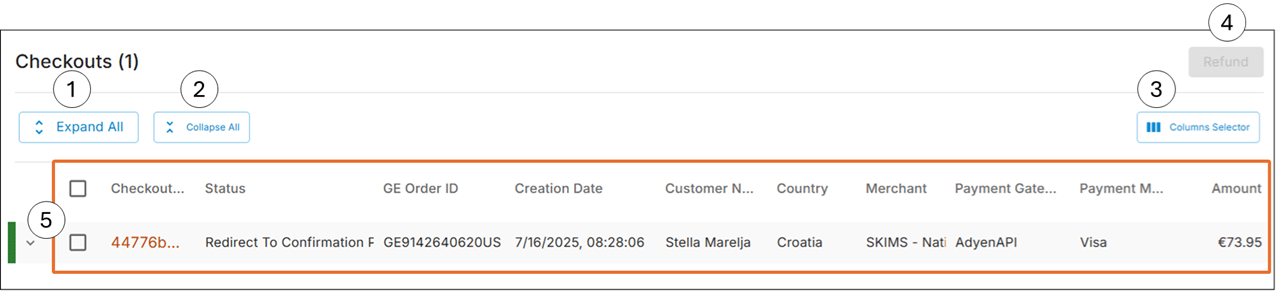
| No. | Element | Description |
|---|---|---|
| 1 | Expand All | Lets you expand all search results simultaneously. |
| 2 | Collapse All | Lets you collapse all search results simultaneously. |
| 3 | Columns Selector | Lets you select which columns to show in the search results table. |
| 4 | Refund | Lets you issue a refund. |
| 5 | Search result | Lets you see basic information related to the searched item. |
Accessing Shopify Payments
- Navigate to Payments > Shopify Payments from the top menu.
-
Do one of the following:
- Run a quick search
- Run an advanced search
Running a Quick Search
-
Select one of the following:
- Checkout ID
- Payment Attempt
- PSP Reference
- Checkout ID - Orders > Logs > Technical Logs (Checkoutid)
- Payment attempt - Shopify Payment search results table (Payment Attempt GUID)
- PSP reference - Orders > Payments & FX > PSP Reference
-
Based on your selection in Step 1, insert a search parameter and click Search.
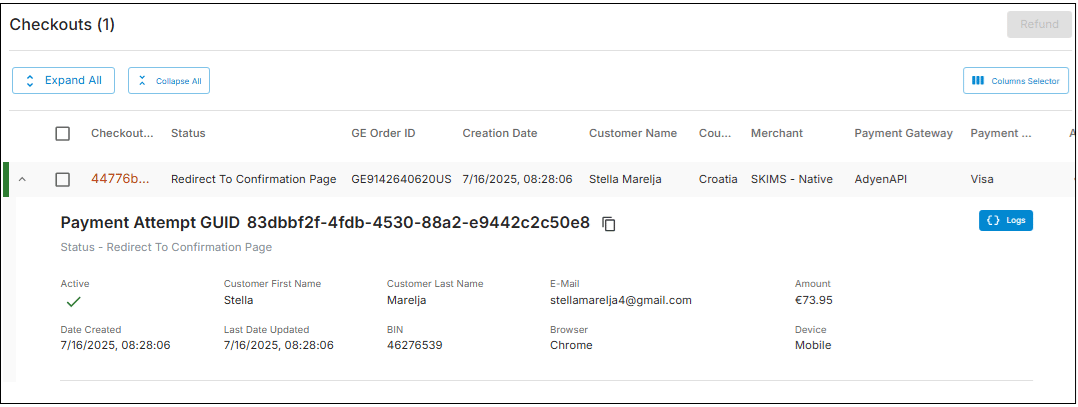
The search results table is displayed:
Running an Advanced Search
If needed, you can run an advanced search.- Click Advanced search.
- Select an integration type, such as Adidasor Classic.
- Fill out the required Customeror Payment Attempts fields and click Search.
Issuing a Refund
You can issue a refund on a Shopify payment if needed.- Run a quick or advanced search.
- Select a checkout row.
- Click Refund.
- When the Confirm Refund message is displayed, click Ok.The Refund Request Status screen is displayed.
- (Optional) Click Export and select Download as CSV or Print.