

-
Access the Tracking Portal:
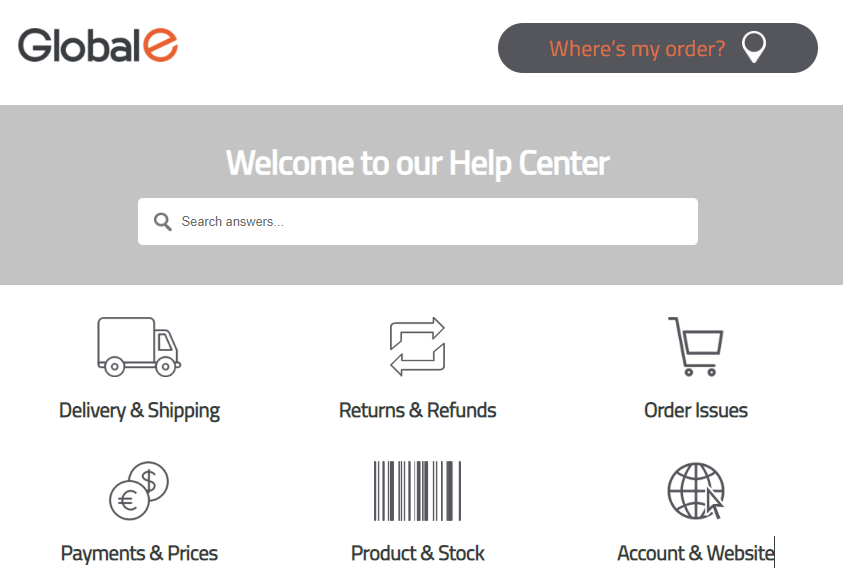
From the Tech Support Help Center, click Where is My Order?
Alternatively, you can access the Tracking Portal directly: https://service.global-e.com/track-my-order The Tracking Portal opens showing the Track Orders view.
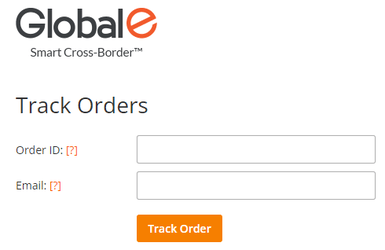
- Enter your Global‑e Order ID or Merchant Order ID.
- Enter the email address used to place the order.
-
Click Track Order.
The order opens, showing the order details and status, and the Order ID as you entered it.
 Note for the Merchant: You can request that Global‑e adds the following product parameters for
TrackingPortalProductAttributesFormatDefault:%Product Image% %Product Name% %Product Description%Supported parameters:{ProductName}{ProductDescription}{DutyCategoryName}{ProductCode}{ProductMetaData}{ProductGroupCode}{FirstProductCategory}{LastProductCategory}
- Optional: If required. click Track Another Order. You are redirected to the Track Orders view. The Order ID and email address are cleared.
- Marketplace Order - If the order has an associated marketplace order ID, then the order identifier can accept the marketplace order ID.
- Mixed Order - Once searching for a sub-order, all the Mixed Order associated parcels will be displayed with an appropriate tracking status. Searchable by Merchant Order ID / Global-e Order ID.
Error Messages
An error message is displayed in the following cases.| Error | Description |
|---|---|
| Sorry, we couldn’t find that order id in our database | There is no order that matches the provided order ID and email. Make sure to enter the correct order ID and email address. |
| There are multiple orders with these details | We found several orders for this merchant (or marketplace) order ID and email combination. |
| Enter a valid mail address | Make sure to enter the email address used to place the order. |