

Customizing Your Return Portal Look & Feel
The Look and Feel settings let you configure the following:- Layout and margins
- Fonts and colors
- Behavior and display options
- Background elements
Logging in to the Return Portal
To begin modifying your background elements, you must log in to the Return portal.- Navigate to the Return Portal login page.
-
Enter your credentials and click LOG IN.
The Home screen is displayed.
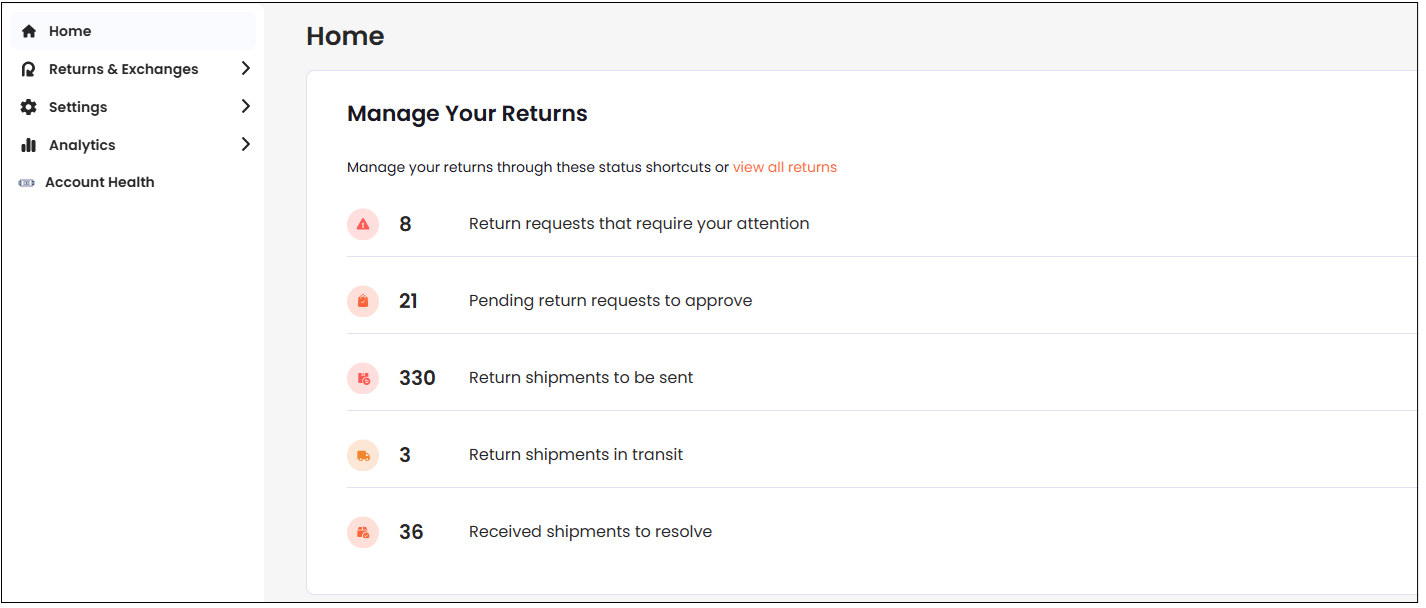
Accessing the Background Elements
The Background settings let you customize various page background elements, such as color, font, and opacity. You can do this by selecting to use either a color or image as your background and then making all needed customizations.- Navigate to Settings > Portal > Look and Feel.
- Click Return Portal.
- Click Backgrounds.
- Customize one of the following:
Customizing your Page Background
The Page background section lets you customize your page background settings, which are applied to each page on your portal. A sample screen is displayed to the right of the customization menus, as shown in the figure below: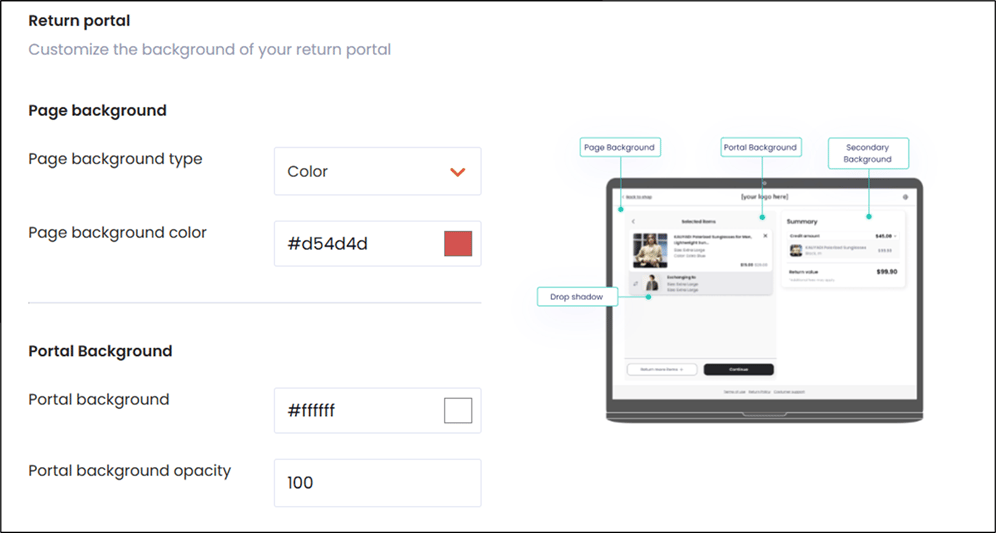
- Scroll to the Backgroundssection.
-
In the Page backgrounds region select one of the following:
- Color
- Image
-
If you selected Color, do the following:
- Select Color from the Page background type menu.
- Select a color from the Page background color menu.
-
If you selected Image, do the following:
- Attach an image located on your hard drive from the Page background image field.
- Set the Page background size.
Customizing your Portal Background
ThePortal Background settings customize the primary background color and opacity of your entire portal.- Scroll down to the Portal Background section.
- In the Portal background menu, set a color.
- In the Portal background opacity menu, set an opacity level.
Customize your Secondary Background
The Secondary Background settings customize the secondary background color and opacity of your entire portal.- Scroll down to the Secondary Background section.
- In the Secondary background menu, set a color.
- In the Secondary background opacity menu, set an opacity level.
Customizing your Stroke Lines
The Stroke Lines settings let you customize the stroke line colors.- Scroll down to the Stroke Lines section.
- In the Stroke / line colormenu, set a color.
Customizing your Shadows
The Shadows settings customize the shadow settings.- Scroll down to the Shadowssection.
- In the Popup overlay section, set a color.
- In the Popup overlay opacity section, set an opacity level.
- In the Drop shadow section, set a shadow color.
- In the Drop shadow opacity section, set a shadow opacity level.
Adding a Cover Image
The Cover Image section lets you add a cover image. This is the image displayed on the main screen of the portal.- Scroll down to theCover Image section.
- Upload an image from your hard drive.
- The image preview is displayed.
Follow these guidelines for optimal results:
- Minimum image size: 500px width and 456px height
- Maximum file size: 400KB
- Supported formats: .jpg, .png, .WebP