

-
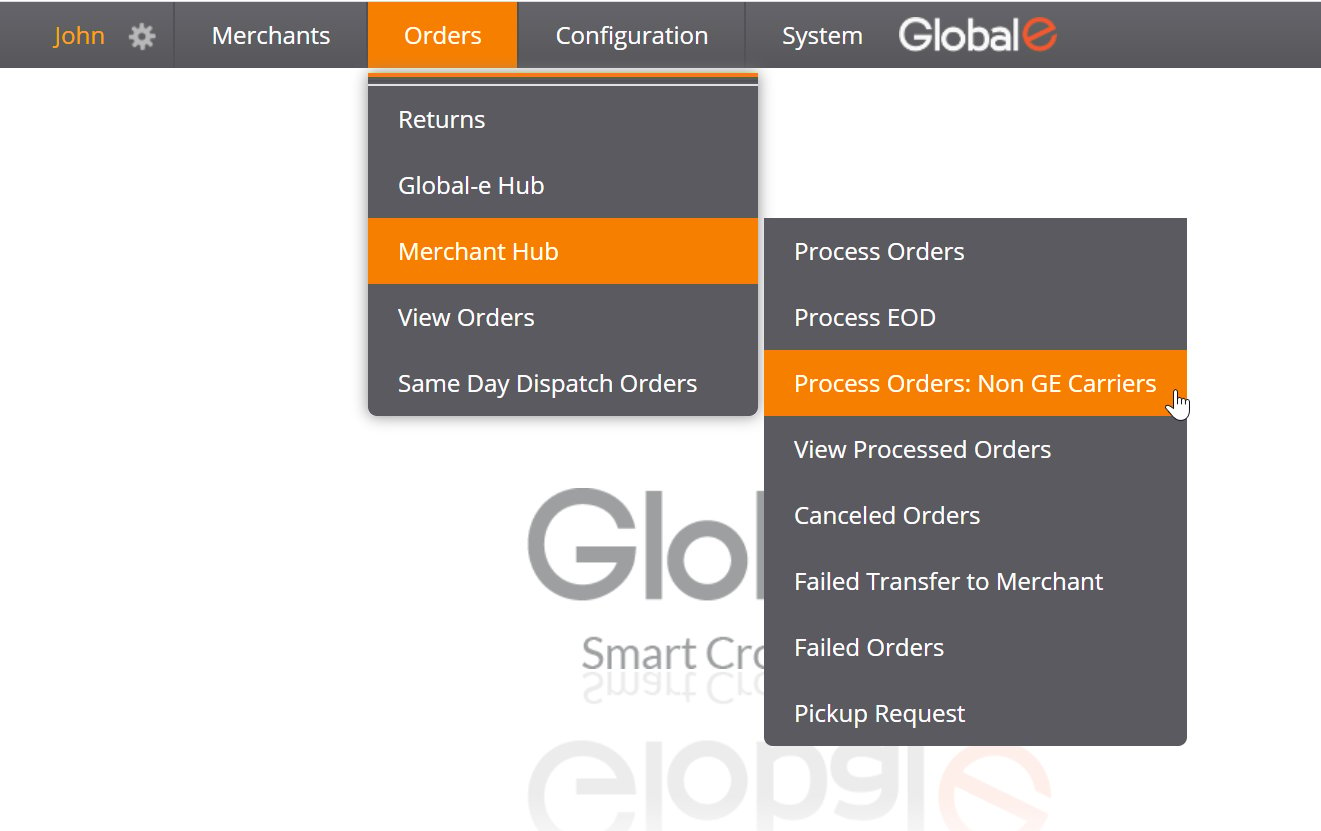
From the Merchant Portal, go to Orders > Merchant Hub > Process Orders: Non-GE Carriers.
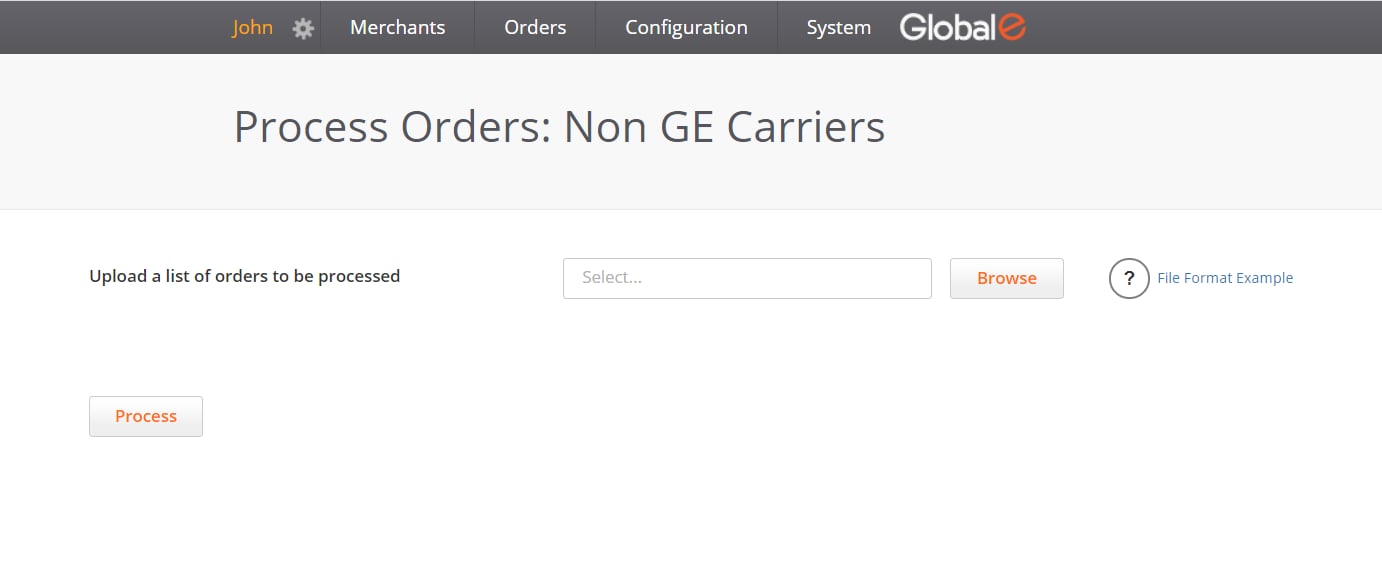
The Non-GE Carriers screen opens.
-
Prepare a list containing the orders to be shipped with non-GE carriers.
You can use the file format example in the Non-GE Carriers screen for correct formatting, reference, and download.
- Enter each order as a single line.
- For each order, enter: The Order ID The Order ID is your order identifier with can be either, a unique Global-e order ID or your store order ID. Each order must either be by either, a unique Global‑e order ID (starting with GE) or by your store order ID. The tracking ID The Shipper’s tracking number will appear in the email sent to the customer. Optional: The tracking URL The shipper’s tracking URLwill appearin the email sent to the customer. Same comment When not listed, the default URL for that shipper is used along with the provided tracking number.
- Once your file is ready, click Browse to upload it to the Merchant Portal.
- Click Process. Once you have successfully completed this process, Global-s notifies customers by email that the order is on its way. This email includes the tracking link and ID, enabling customers to check the status of their order.
Processing Orders
Process Orders: Non-GE Carriers
If you are shipping your orders through non-Global‑e carriers, regardless of how many non-GE carriers, Global‑e enables you to update these orders on the Merchant Portal and provides your customers with the correct tracking link for the order.
To upload your list of orders to be shipped with non-GE carriers to the Merchant Portal: