
Marketing Banner (Free Shipping Banner)

If your site does not include the Marketing Banner and you wish to add it, contact us at ProSupport@global-e.com
Access the Marketing Banner
To access the Marketing Banner:- Go to the Global‑e Merchant Portal > Merchant > Site Customisation Screen.
-
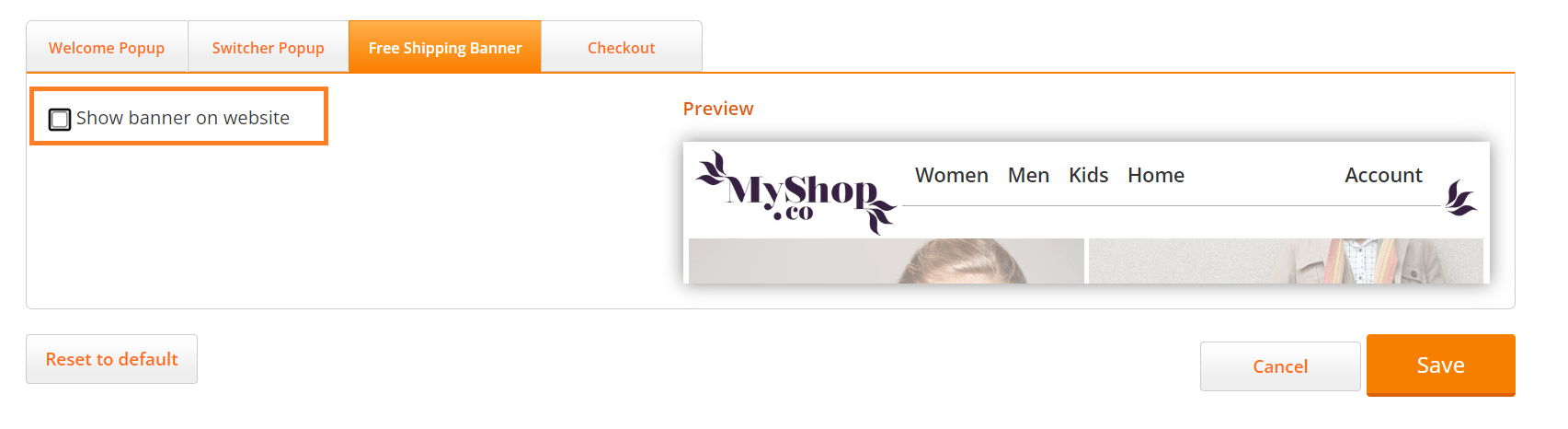
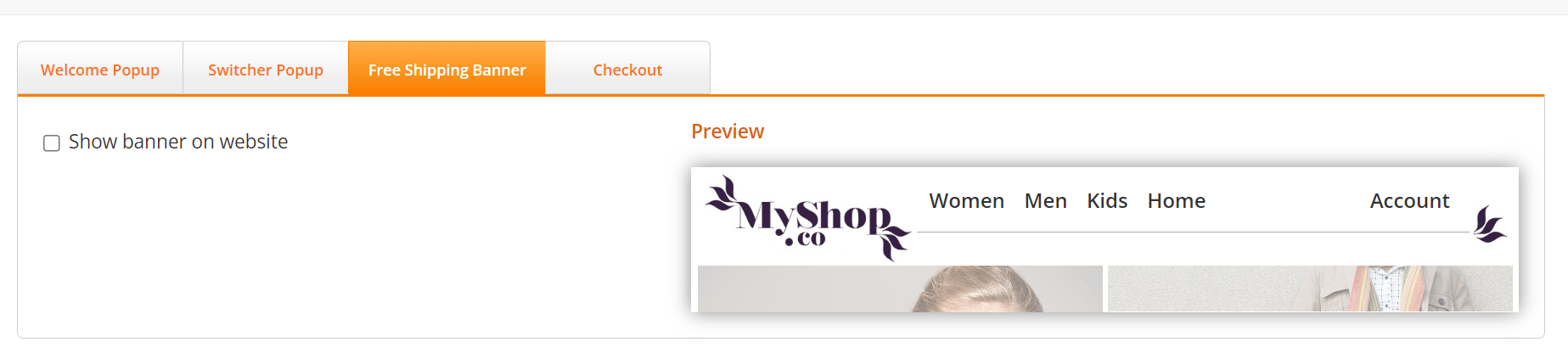
Select the Free Shipping Banner tab.
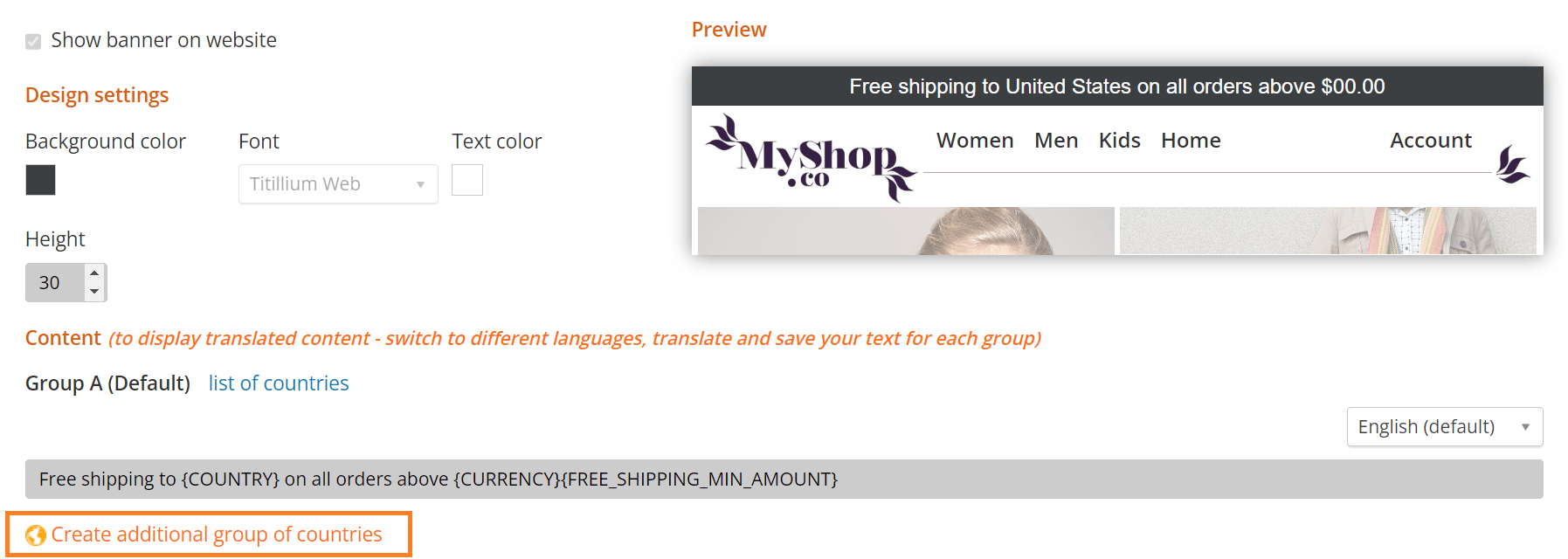
A preview of your banner is displayed.
-
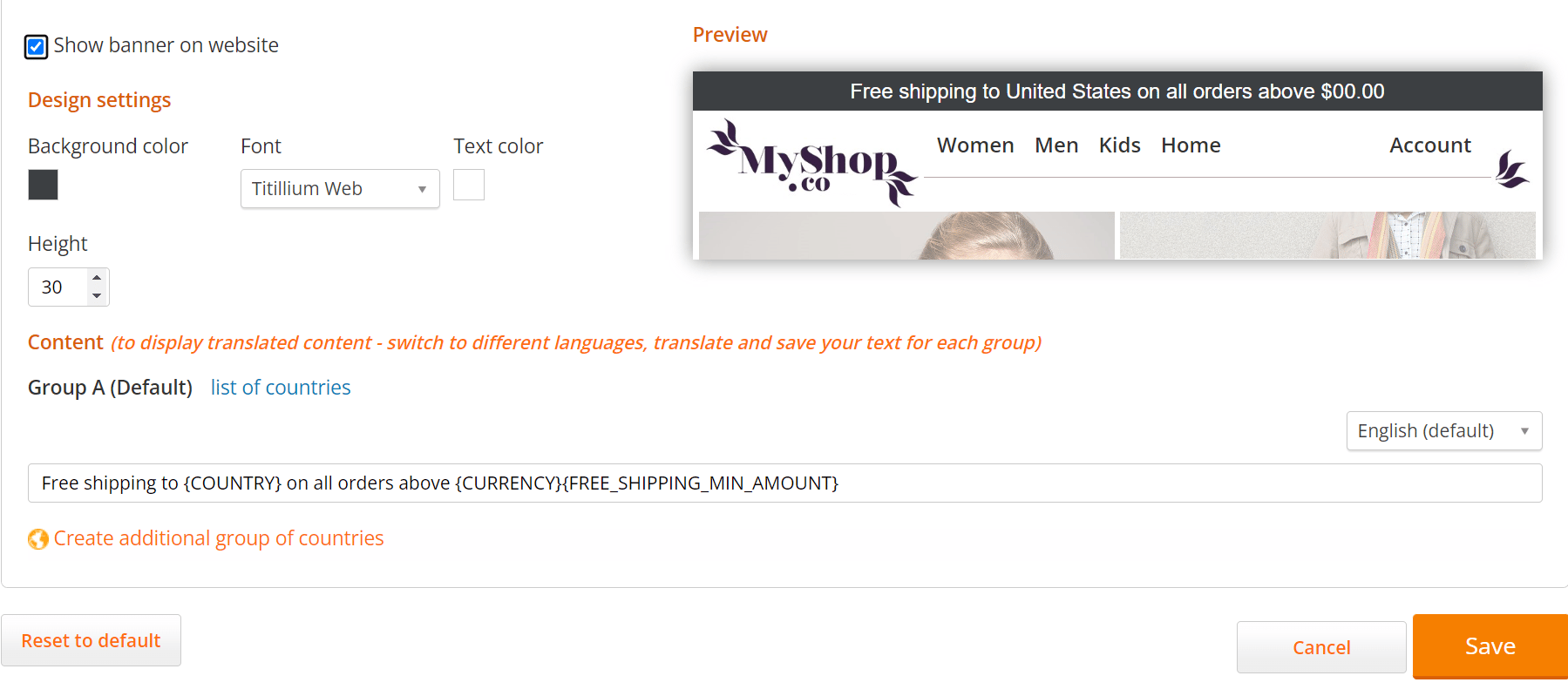
The design settings are now available
To hide the banner, clear the Show banner on website option.
- Edit the banner’s textEdit the Banner’s Text
- Customize the Banner’s Design
- Create Customized Banners
- Show or hide the Banner
Position the Marketing Banner
The Free Shipping Banner is inserted as the first element on your storefront. However, if this does not suit your store, Global-e can place the banner in a different location using the ID of an element. To insert the Free Shipping Banner in your preferred location on your storefront, add a new DIV element with a unique ID into your chosen location and share that ID with Global-e. This gives you complete control of the location of the banner and its position. For Example:Customise the Banner’s Design
To customise the Banner’s design:-
Under Design settings, customise the banner’s design as detailed below and view your changes in the Preview pane.
Unlike text edits, changes made to the banner’s design and appearance are applied to each language and each country.
Field Description Change the banner background colour Click the colour-well next to Backgroundcolour and select a colour. Modify the banner height In the Height field, specify the height of the banner (in pixels). Change the font of the banner text From the Font drop-down, select the banner’s text font. Change the colour of the banner text Click the colour well next to Text colour and select the colour of the banner text. - Click Save.
Banner Options
Your Marketing Banner page includes a section called Group A with a set of default settings.
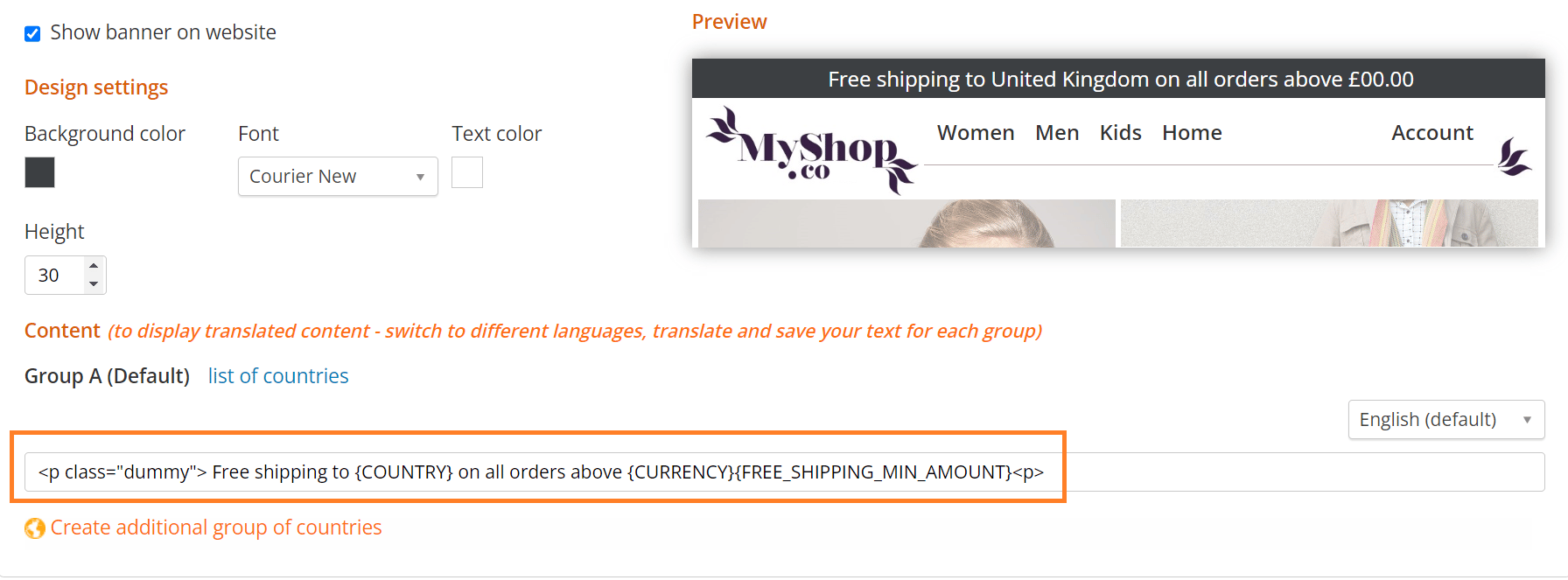
- Country Name – the shipping country’s name
- Currency – the chosen currency for the shipping country
- Free Shipping Minimum Amount – the minimum cart value from which free shipping is offered
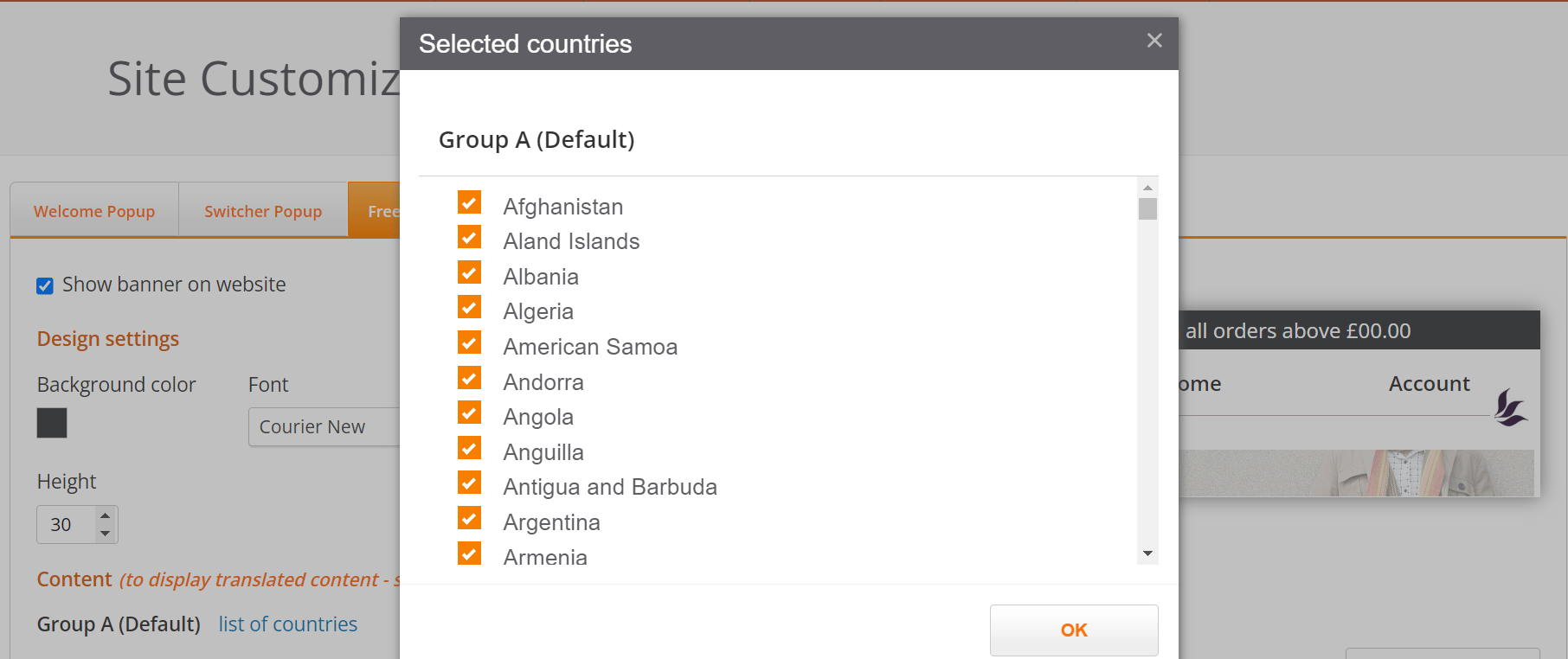
- Above the default text, click on List of Countries
-
The list of selected countries opens.
Create Customized Banners
Create compelling and targeted Banner campaigns by showing customized messages to visitors in specific countries. For example, you can show visitors in Europe a banner with one particular message while displaying a different banner message to visitors in Australia. To create customized Banners and targeted campaigns you need to create additional groups, as detailed below.Create Additional Groups and Banners
To display customised messages to visitors in different countries, you need to create a new Group for each collection of countries that you are targeting. To create customised messages for a group of countries:-
At the bottom of Design Settings click Create additional group of countries.
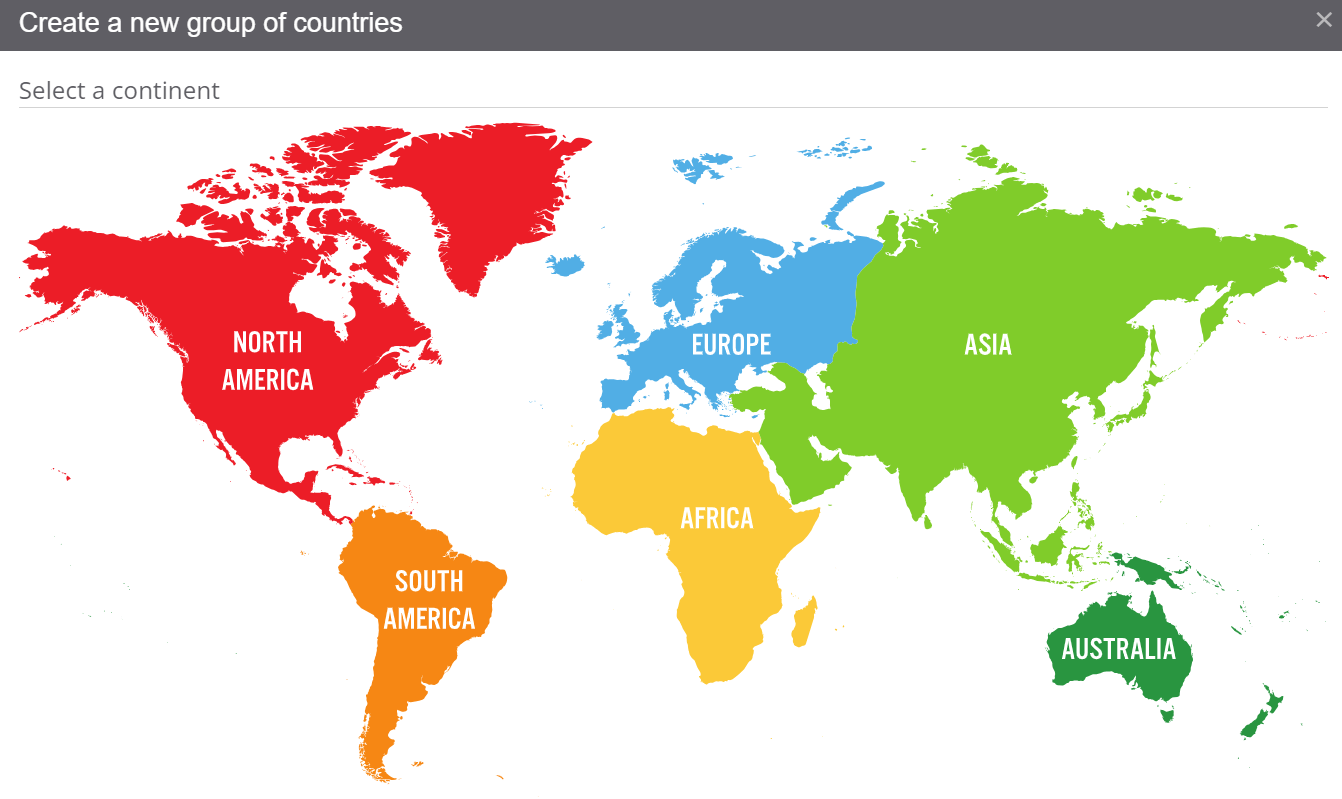
The Create a new group of countries window opens.
-
Click on the desired continent.
A list of all the countries in that continent opens.
 A country can only belong to one group at a time. By default, all countries are members of Group A. When a country is added to an additional group, the country is automatically removed from Group A.If the name of a country is disabled, it indicates the country has already been added to an existing group.
 - Select all the countries you want to add to the group > Click OK. At the bottom of Design Settings, the new group, Group B, now appears under Group A.
-
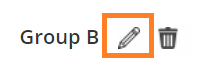
Click the pencil icon to edit the name of the group.
-
In the language drop-down, select the appropriate language for the countries in the group. For example, select Spanish if the group contains Spain.
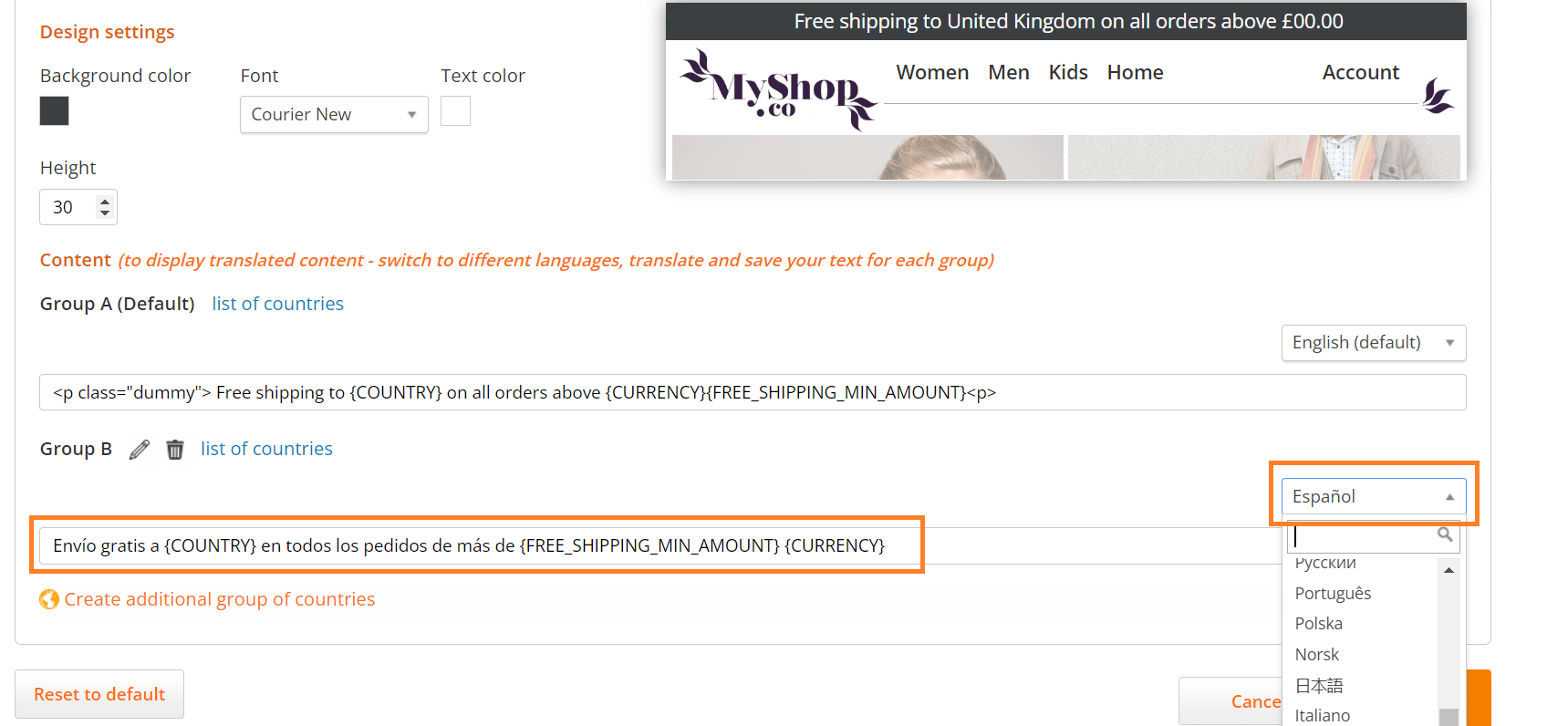
- Set up your customised message for the group by editing the text in the Banner text box.
- Click Save.
Delete a Group
To delete a group:- Select the group you wish to delete.
-
Next to the name of the Group, click the trash icon.

- Click Save.
Show or Hide the Banner
By default, the standard banner is shown on your website. To show or hide the banner:-
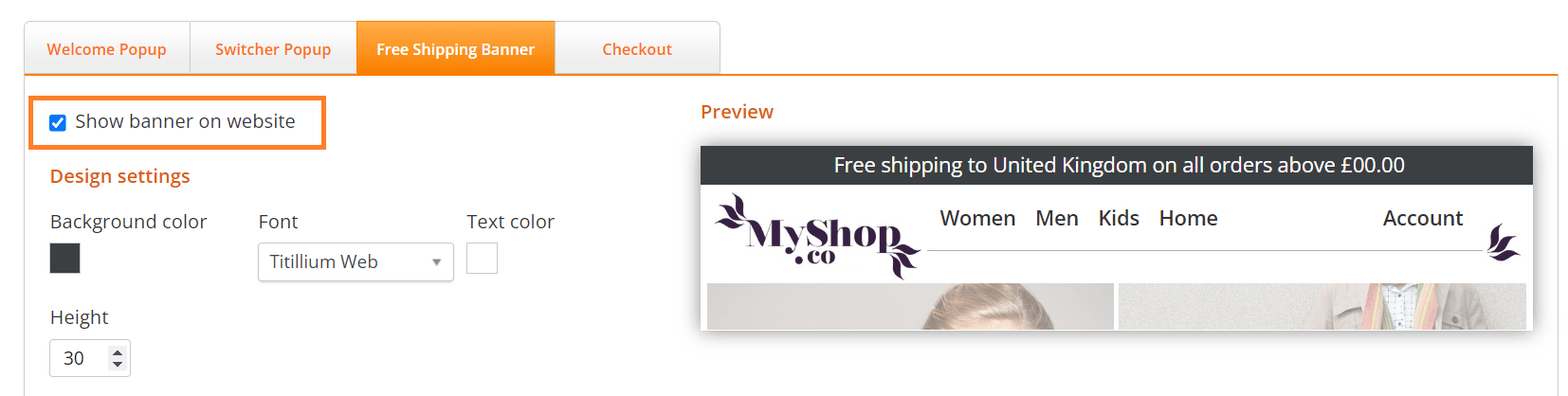
Select Show banner on website to show the banner.
-
Deselect Show banner on website to hide the banner.