

- From the Global‑e Merchant Admin, go to Orders**> View Orders**.
- Find the relevant order (enter the order information and click Find and View) and open it.
- Make sure the order is in Dispatched Status.
-
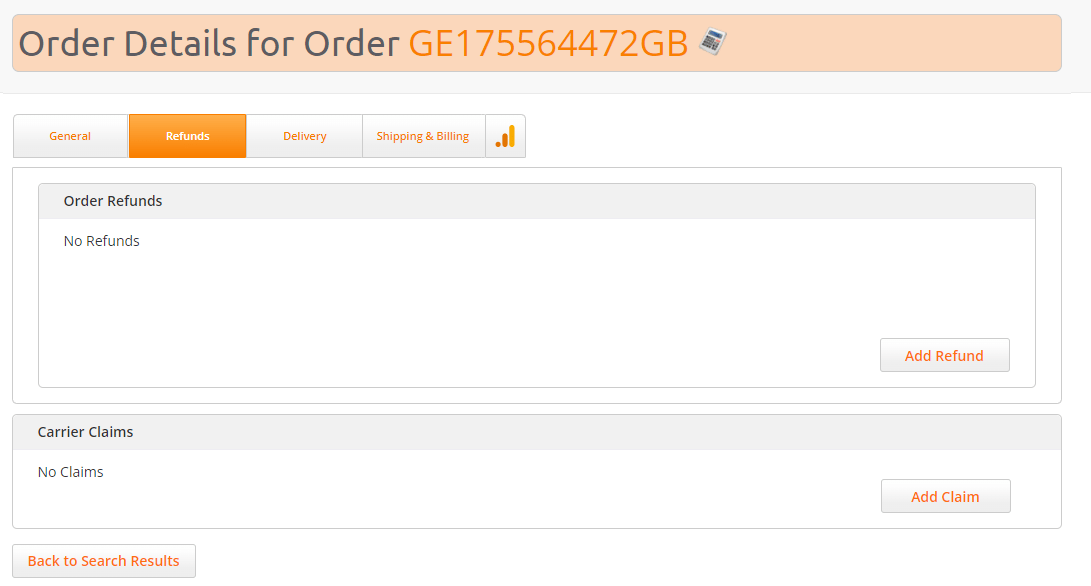
On the Order Details screen, click the Refunds tab.
-
Click Add Refund.
The Refunds screen opens.
The following information is displayed:
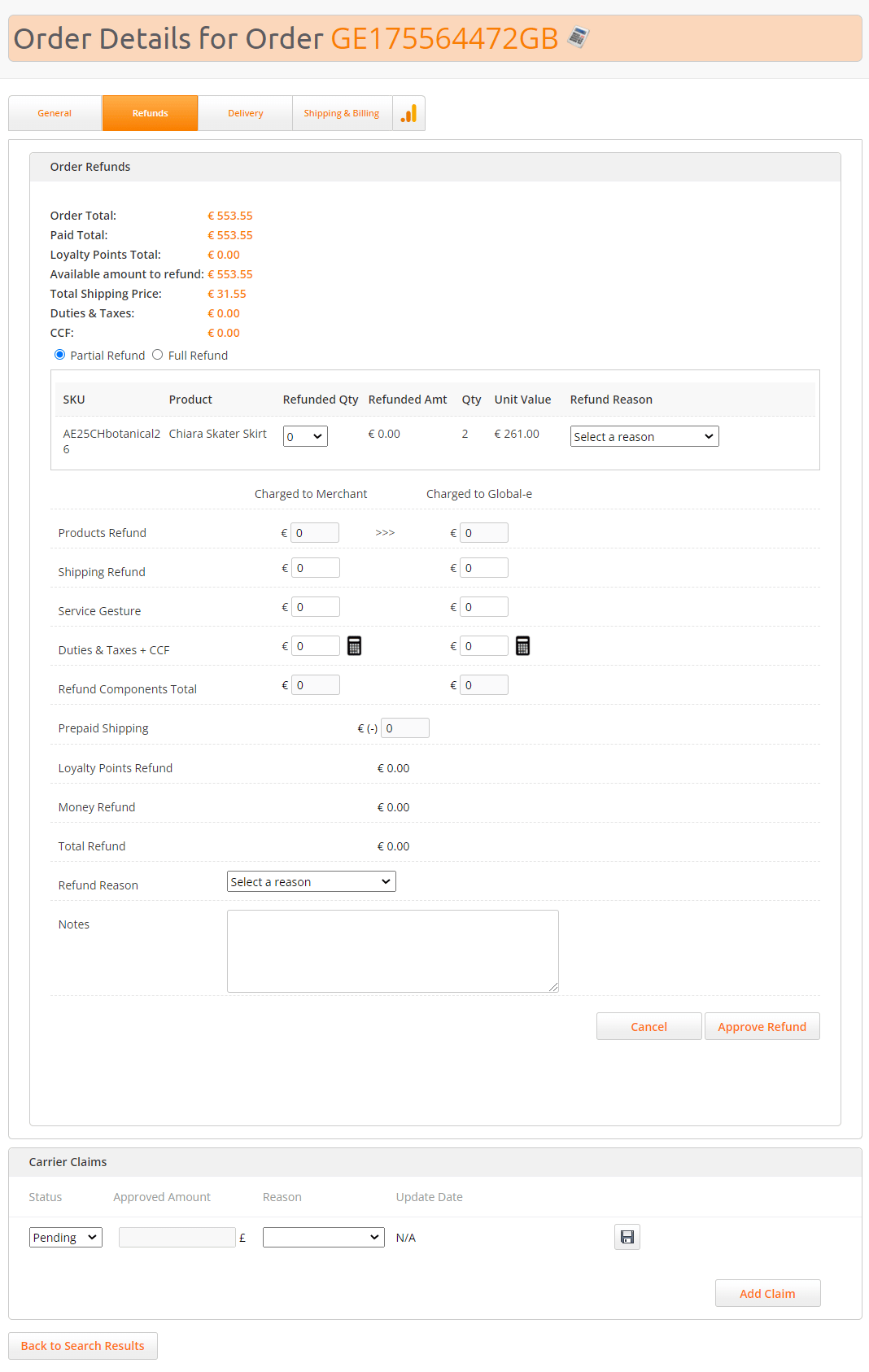
Field Description Order Total The total amount that the customer paid for the order Paid Total TBD Loyalty Points Total TBD Available amount to refund The amount that can be refunded. If previous refunds were performed for that order, the amount to be refunded will be lower than the order total. Total Shipping Price The total shipping price paid by the customer Duties & Taxes The duties paid by the customer CCF The customs clearance fees paid by the customer - Select the type of refund: Full Refund or Partial Refund.
- Click Approve Refund.
Refunds
Issuing a Refund
To refund an order: