

Prerequisites
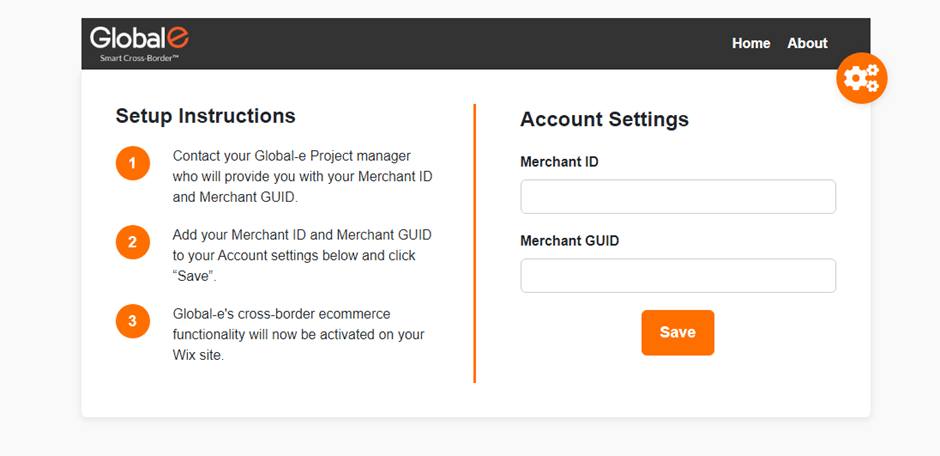
The Global-e Wix application requires:- A Wix store account.
- A Global-e Merchant account.
- A Global-e Merchant ID and a Merchant GUID (provided to you by Global-e).
- An administrator account for the Platform’s back-office of the store.
-
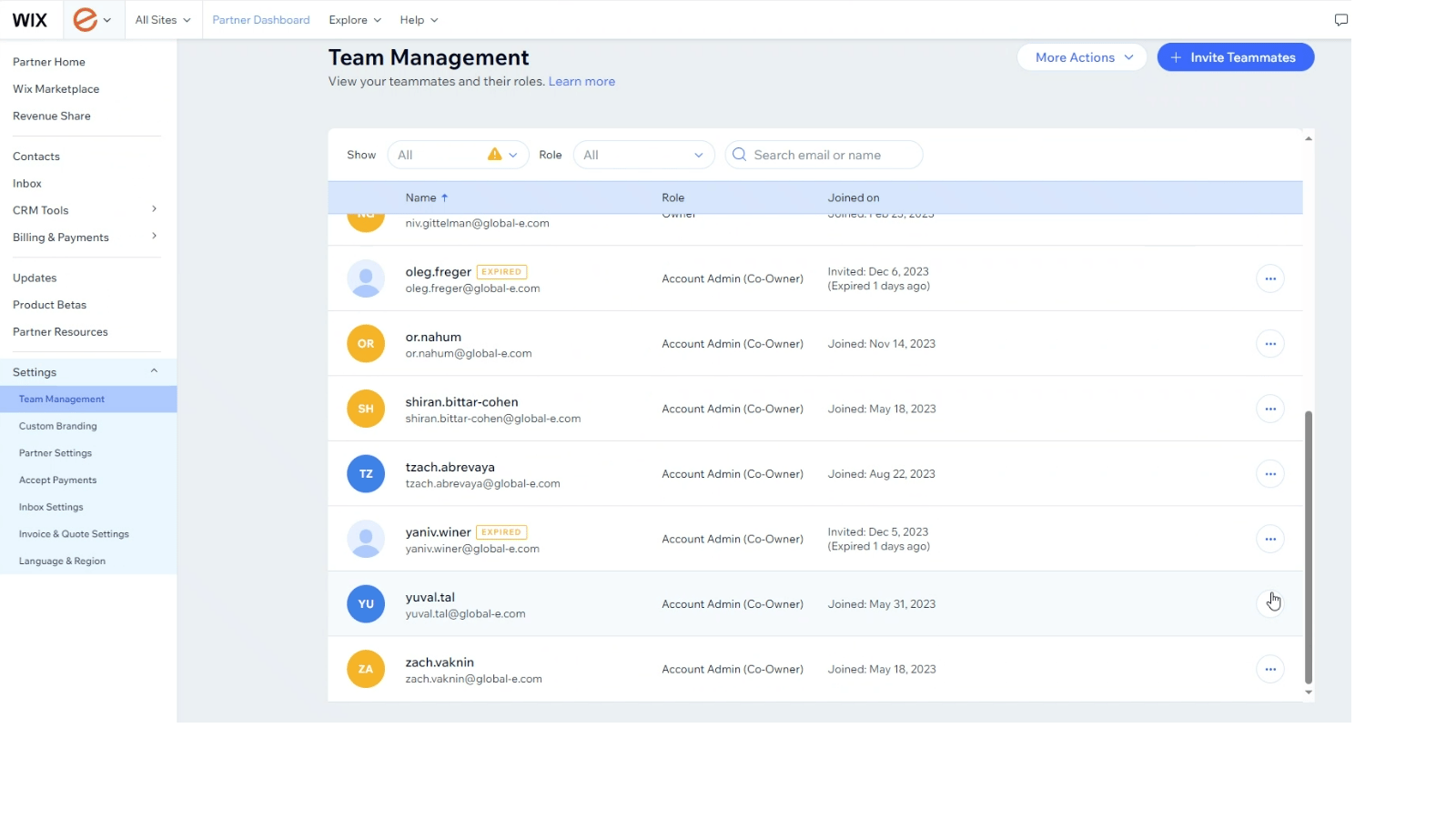
Navigate to Settings > Team Management.
-
Click Invite Teammates.
The Invite Teammates page opens.
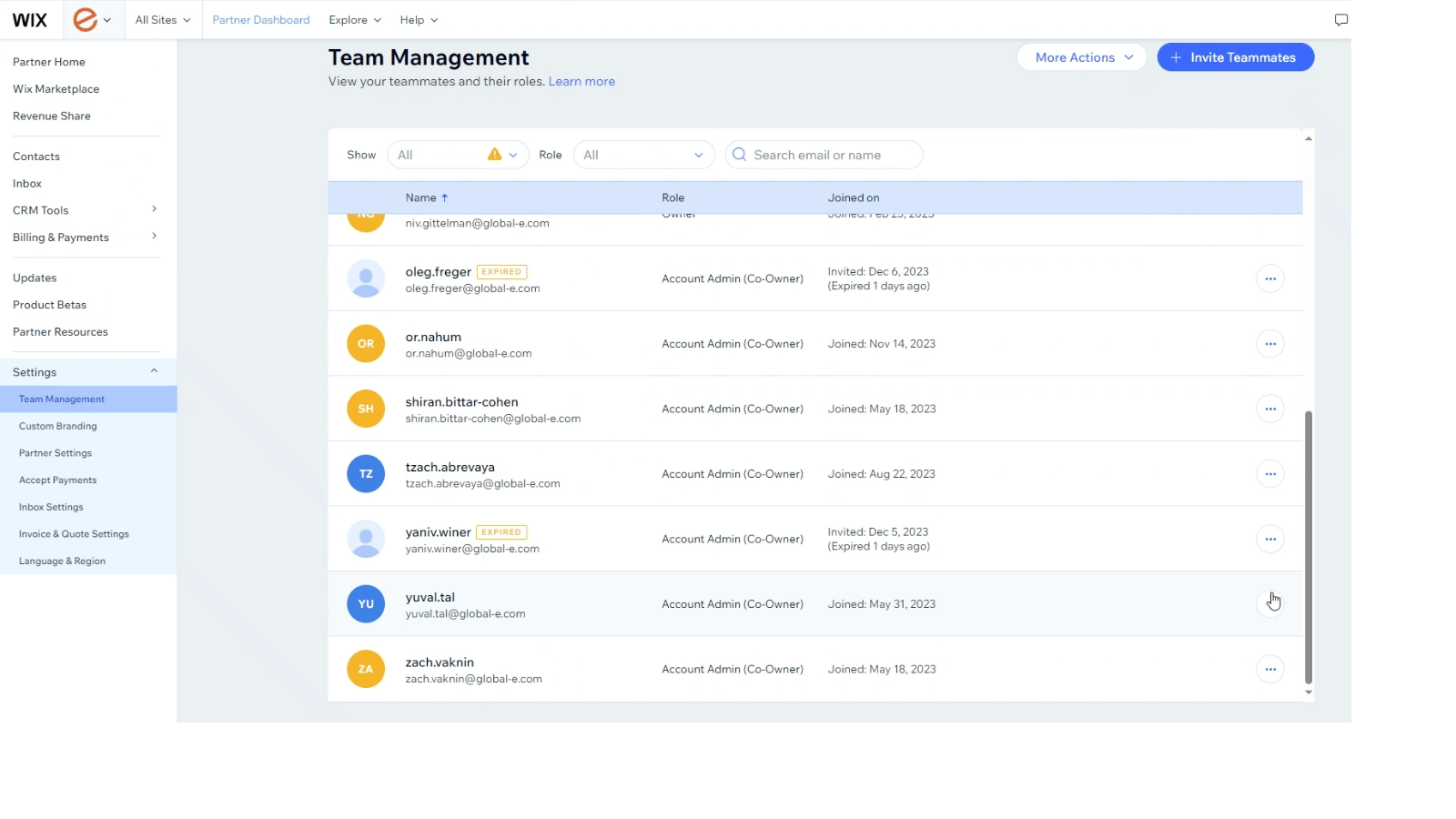
- Input your CSM’s email address.
- Click Send Invite.
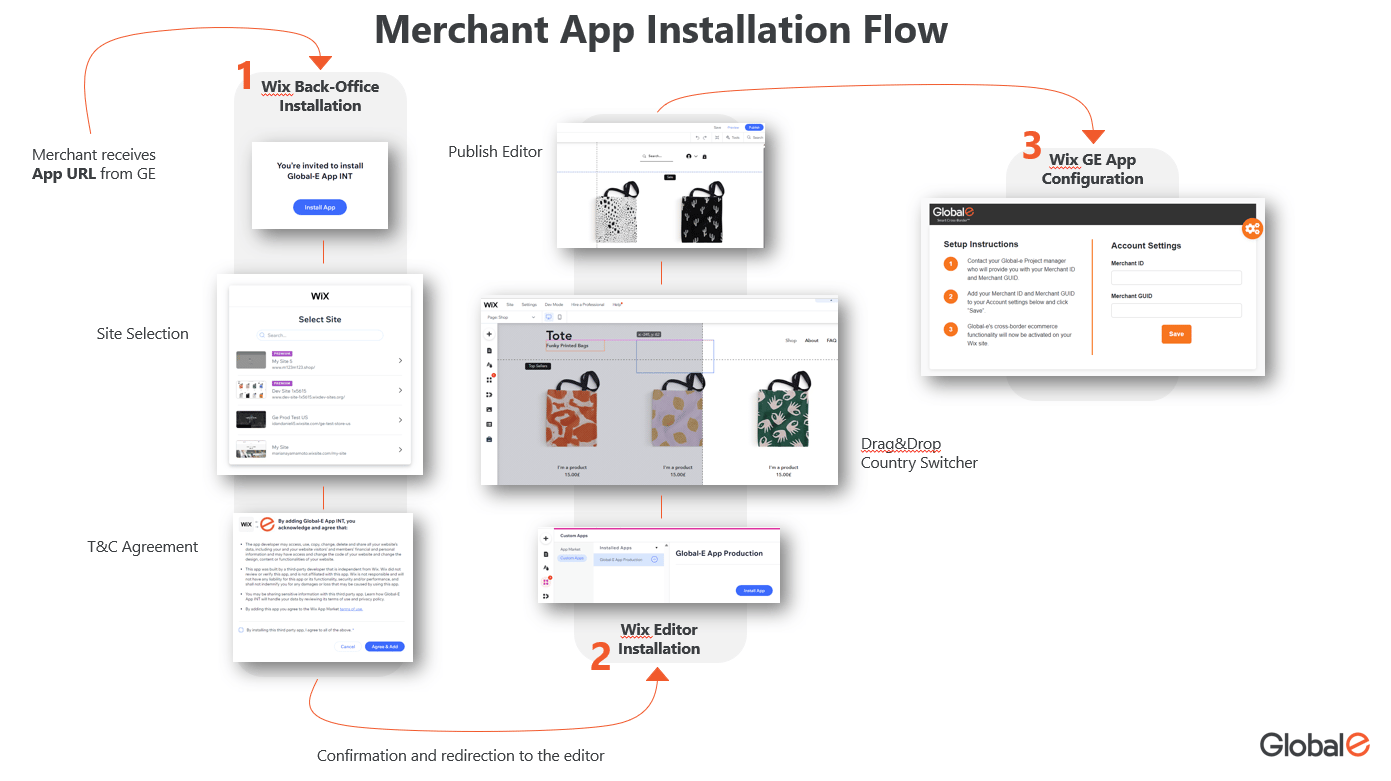
Back-Office Installation
-
Click the relevant installation link:
- QA-INT Application - http://wix.to/KcmB081
- Production Application - http://wix.to/yURrd21 (Integration is tested in GEM hidden mode)
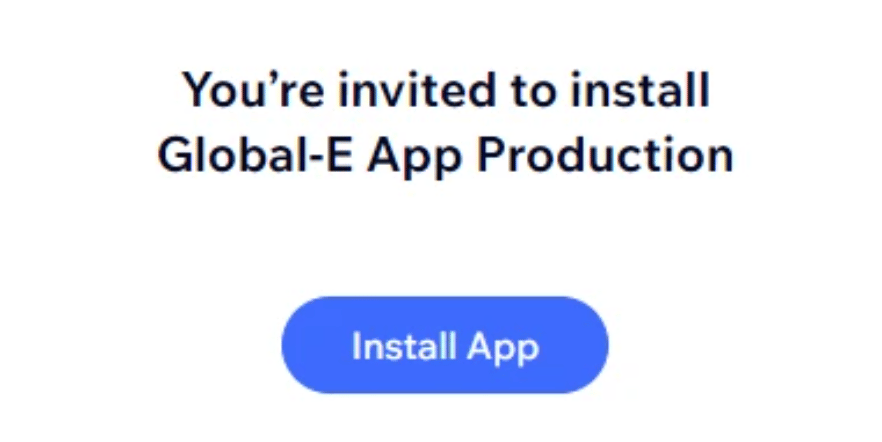
- Click Install App.
-
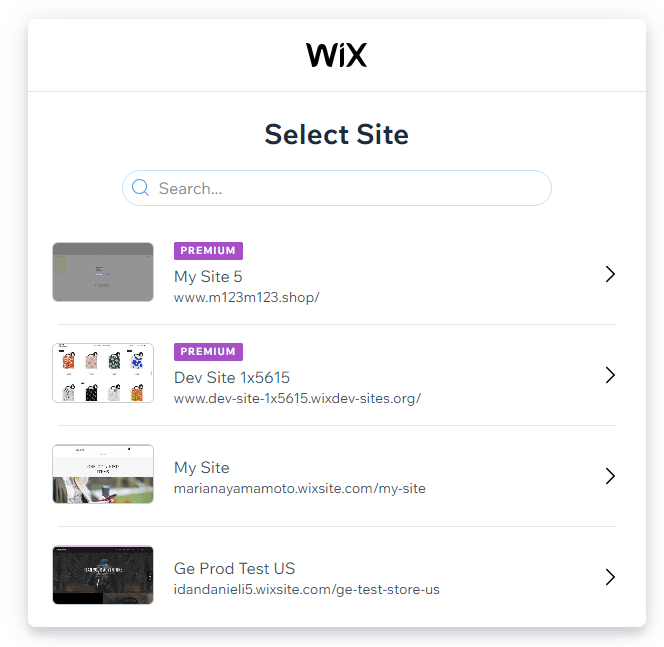
Select the store where you wish to install the application.
A message opens asking you to approve the application permissions.
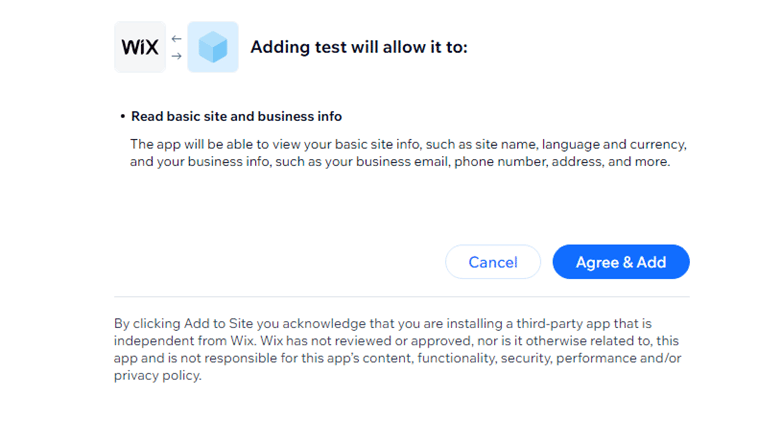
- Click Agree & Add. You are automatically redirected to the editor section of your site.
Editor Installation
-
Navigate to Custom Apps > Installed Apps.
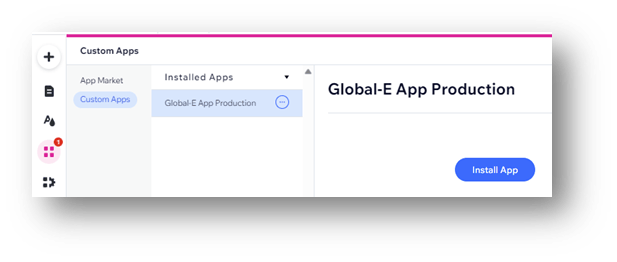
- Select Global-e App Production and click Install App.
- At the top-right click the + sign.
- Select App Widget
- Select the Country Switcher widget and drag it to the section where you want it to be located (this is usually the header).
-
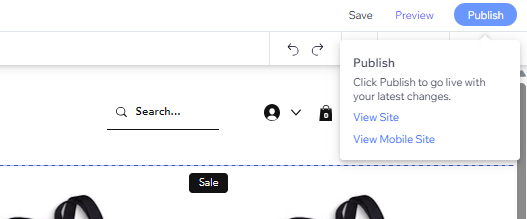
Click Publish to save the changes.
To Uninstall the App
Follow the steps below to uninstall the Global-e app from your website.-
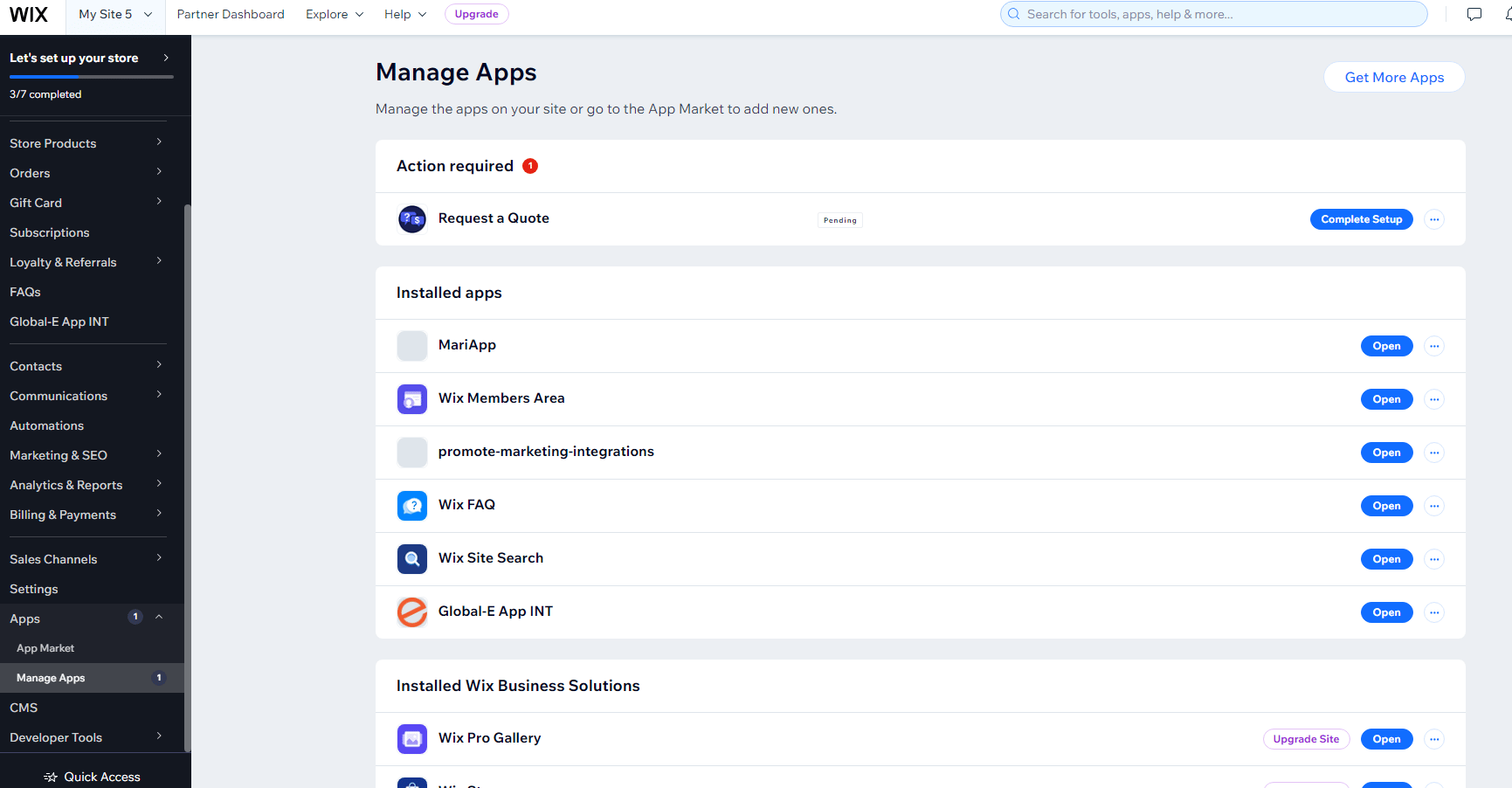
Navigate to Apps > Manage Apps.
-
Go toGlobal-E App INT and click on the three dots.

-
ClickDelete.
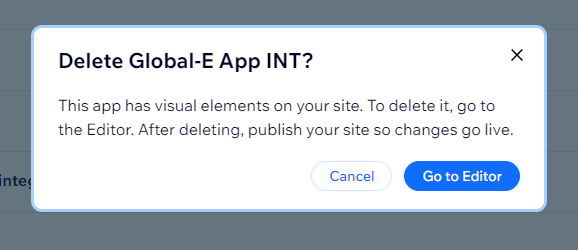
A message pops up confirming your request to delete the app.
-
Click Go to Editor.
A second confirmation message opens asking for your reason for installing the app.
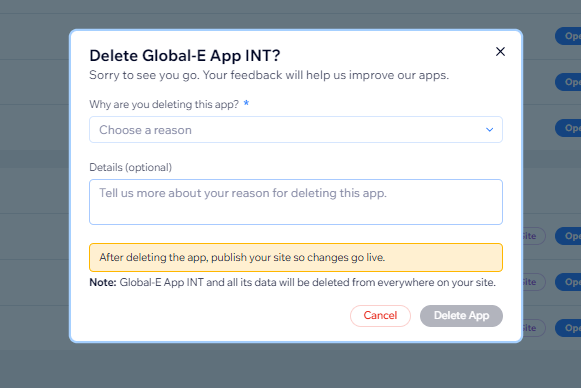
- Complete the mandatory fields and click Delete App.
- Publish to save the changes.