Integration Features
| Feature | Description |
|---|
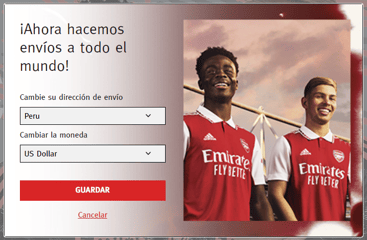
| Country and Currency Switcher | Choose over 200 countries with default or free currencies (which can be replaced by a custom implementation) |
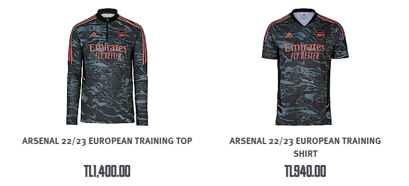
| Currency Conversion | View prices in local currency with up-to-date conversion rates, country coefficients, rounding rules, and currency symbols |
| Duty and Tax Calculations | Country and continent-specific duty and tax calculations |
| Delivery Cost | Dynamic delivery cost calculations based on country |
| Multiple Shipping Options | Country-specific shipping options from standard to express |
| Local Payment Methods | Choose from the most popular payment methods for each country |
| Promotions | Manage promotions for Global‑e operated countries |
| Customer Service | View and manage Global-e Orders through the Customer Services Tool |
Examples
High-Level Flow
Sample Reference Architecture
Integration Overview Before Global‑e
Customer Journey (Technical)
Integration Overview with GE - Customer Browsing
Integration Overview with Global‑e - Order Creation
Client-side Includes
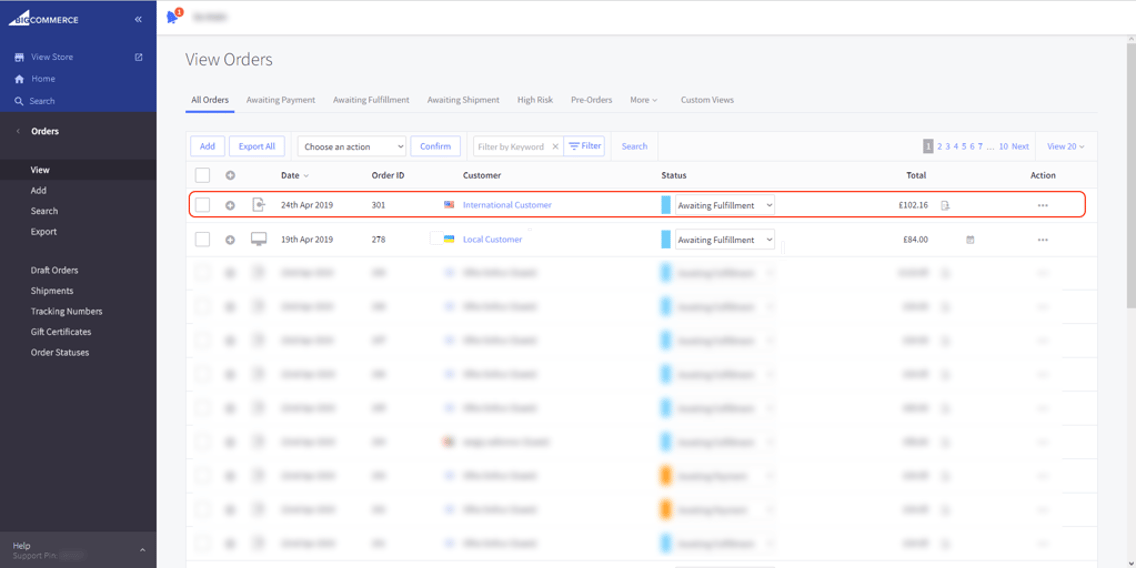
BigCommerce Order List
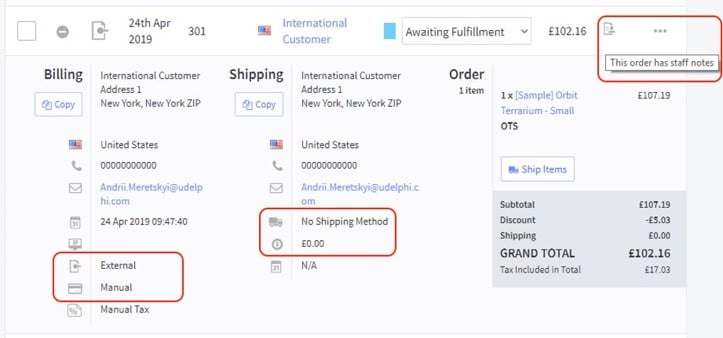
BigCommerce Order Details
- The order is created as domestic
- The international details are stored in staff notes
Integration Overview with Global‑e
Order Dispatch
Marketing, Analytics, and Communication
| Item | Handling |
|---|
| Google shopping feed | Leverage existing feeds and new feeds for Global‑e operated destinations leveraging the Global‑e cartridge or price feed API |
| Analytics and tracking | Review current trackers and analytics integration to build the associated data layer and triggers using the Global‑e checkout callbacks |
| Email Communications | Transactional emails provided by Global-e and suppressed on the merchant sideAll marketing material and communications remain with the brand |
Analytics and Tracking Pixels - Client SDK
Conversion Tracking Server-Side
Google Analytics solution hosted by Global‑e OR through a JavaScript callback from the iframe to the container page.
Marketing Feeds
Adjust existing Google feed and new feed for Global‑e markets.
Order Processing
Global‑e-operated orders are created in the e-commerce platform as domestic orders (base currency) with:
- End Customer transaction currency data
- End Customer shipping and billing address
- “Global-e” shipping service(s) – for warehouse dispatch routing – to be mapped in ERP
- “Global-e” payment provider – for financial/accountancy handling – to be mapped in ERP
- Both Global‑e and brand platform order numbers referenced on both sides
OMS/ERP Order flow: suppression of current activities on fraud, auth/capture, emails
Shipping documentation (carrier label and invoice) when provided by Global‑e entails:
→ No actual end customer address is required by the Warehouse team and systems
→ Order number documentation allows retrieving from Portal or API
Order Downstream Flow and Dispatch
Returns and Refund Management
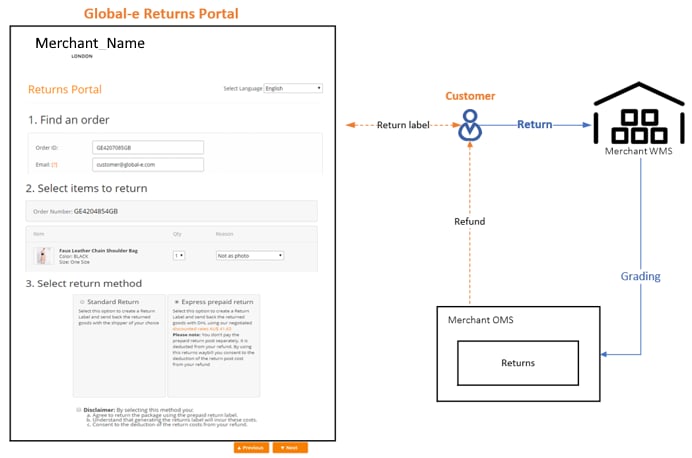
The customer submits returns requests directly through the Global-e Returns Portal (Global-e Customer Service Portal).The Admin can perform returns via the Global-e Merchant Portal Returns screen.Refunds are executed either via:→ The Global-e Customer Service Portal→ Direct API integration with Global-e
-
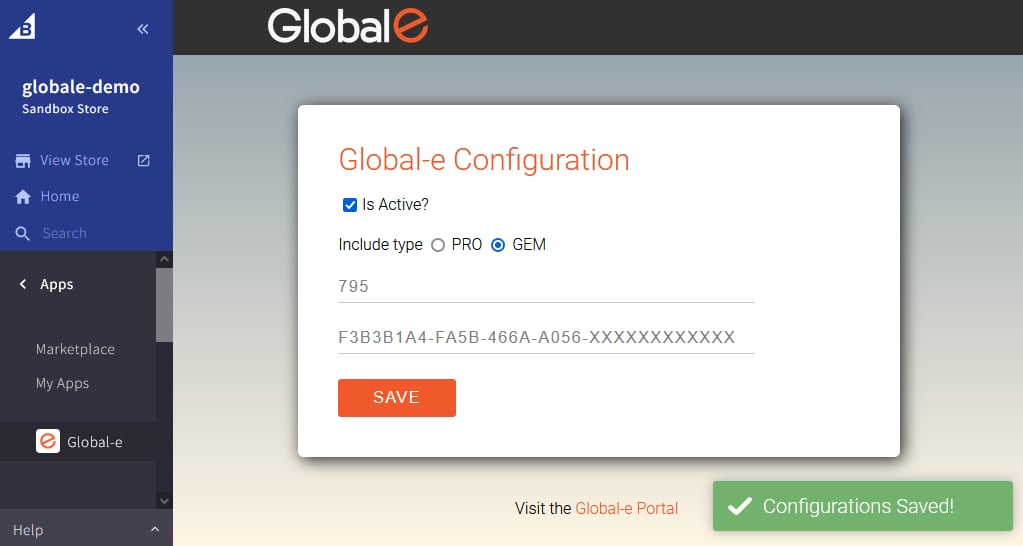
From the BigCommerce left menu, select Apps > Global-e.
The Global-e Configuration screen opens.
-
Configure the following parameters, as required:
| Field/Box | Description/Steps |
|---|
| Is Active | Adds or removes the Global-e includes to or from your site.Select Is Active to add the Global-e script includes to your Merchant site.Clear the box to delete the Global-e includes from your Pla site. |
| Include type | The Global-e include types are based on the Global-e solutions (Pro, GEM). The default include type is based on the Global-e GEM solution. |
| Merchant ID | Your Merchant Account ID, as recorded in the Global-e system. Example: 899Modify your Merchant Account ID, if required. |
| Merchant GUID | The private key of your Merchant Account ID in the Global-e system.Example: F978DFEB-FF8C-4EE1-BFDA-68FB1B78E217Modify your Merchant Account ID private key, if required. |
-
Click SAVE.
The Global-e scripts for BigCommerce are added to your Merchant site.