> ## Documentation Index
> Fetch the complete documentation index at: https://nce-docs.bglobale.com/llms.txt
> Use this file to discover all available pages before exploring further.
# Installation
You can install the Global-e Magento2 Extension packages in one of two ways:
* [Extract the Zip file](/installing-global-e-modules-using-a-zip-file) provided to you by Global-e that includes the two packages.
* [Run the composer-based installation](/composer-based-installation) directly from the Global-e repositories.
## Activating the Extension
The Global‑e Magento2 Lite extension provides a configuration screen that allows actual activation of Global‑e Integration on the website along with other settings:
Stores -> Configuration -> Services -> Global-E Integration Lite:
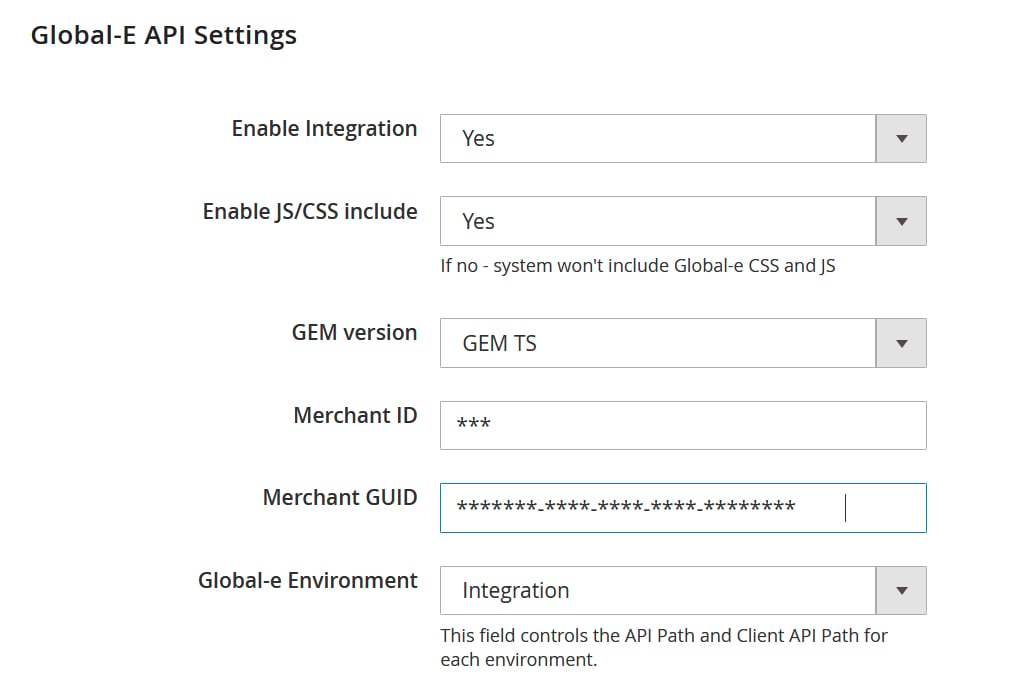 All configuration details will be provided by Global‑e during the integration step.
## Headless Installation
If a full page cache requires a whitelist of dynamic URLs, the following patterns should be whitelisted to support Global-e integration
Frontend area:
`/international-ge/*`
`/international/*`
Admin area:
`/globale/*`
Additionally, Global-e uses Magento2’s REST APIs. Make sure to enable them.
Make sure not to cache them (remove them from varnish or any other cache mechanism).
All configuration details will be provided by Global‑e during the integration step.
## Headless Installation
If a full page cache requires a whitelist of dynamic URLs, the following patterns should be whitelisted to support Global-e integration
Frontend area:
`/international-ge/*`
`/international/*`
Admin area:
`/globale/*`
Additionally, Global-e uses Magento2’s REST APIs. Make sure to enable them.
Make sure not to cache them (remove them from varnish or any other cache mechanism).