> ## Documentation Index
> Fetch the complete documentation index at: https://nce-docs.bglobale.com/llms.txt
> Use this file to discover all available pages before exploring further.

# DHL EOD process

**Express/Standard EOD process**

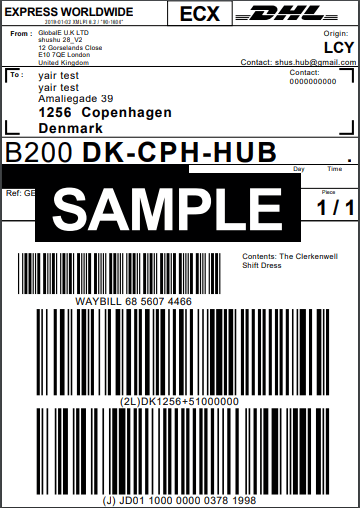
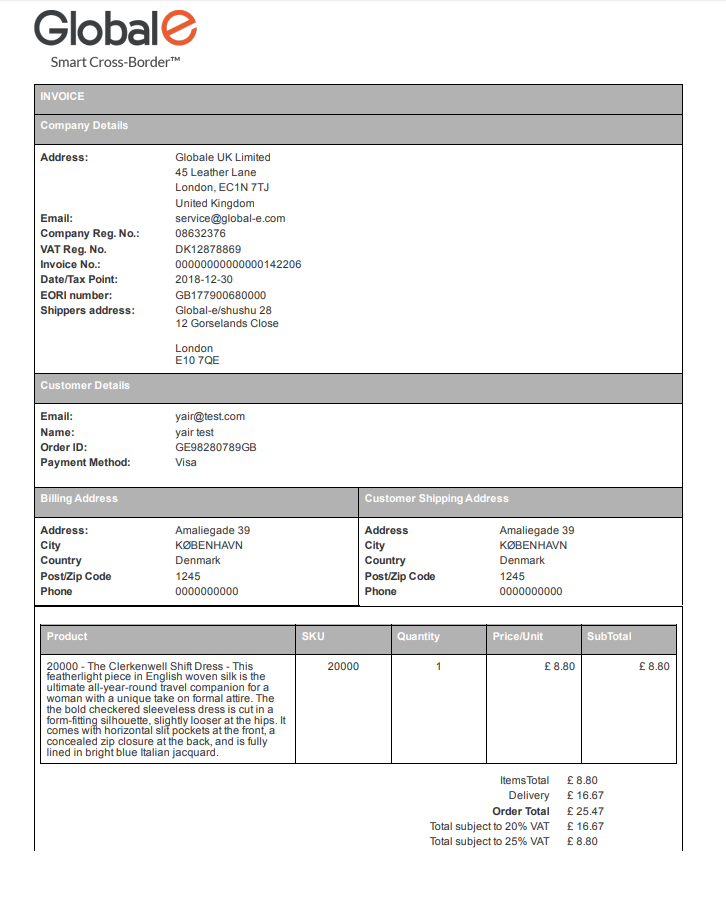
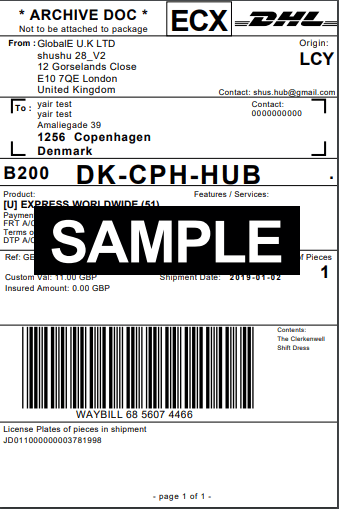
1. Fulfil each order as usual and print its label and invoice using the Global‑e Merchant Portal.
   <Frame>
     <img src="https://mintcdn.com/globale-nce/eLhOOxssApl6JeL0/images/uuid-c5b055f8-9f45-fc80-6045-a0f444c708a8.png?fit=max&auto=format&n=eLhOOxssApl6JeL0&q=85&s=66a6acb611161d0989c37cce313e7b2c" width="726" height="900" data-path="images/uuid-c5b055f8-9f45-fc80-6045-a0f444c708a8.png" />
   </Frame>

   <Frame>
     <img src="https://mintcdn.com/globale-nce/Bp2mTKuI4zIQKDG5/images/uuid-87ce72f9-bac6-01a5-ae41-4fa525f3c567.png?fit=max&auto=format&n=Bp2mTKuI4zIQKDG5&q=85&s=a23900502eeaa14db57cafe8c7fdce59" width="339" height="509" data-path="images/uuid-87ce72f9-bac6-01a5-ae41-4fa525f3c567.png" />
   </Frame>

   <Frame>
     <img src="https://mintcdn.com/globale-nce/BgPbIPN3eoW9Gg6s/images/uuid-1c42a766-1f46-e8fc-7c27-dbfa360abb07.png?fit=max&auto=format&n=BgPbIPN3eoW9Gg6s&q=85&s=a1be7b8c4eb7b177b90de35f9b051ab2" width="360" height="508" data-path="images/uuid-1c42a766-1f46-e8fc-7c27-dbfa360abb07.png" />
   </Frame>
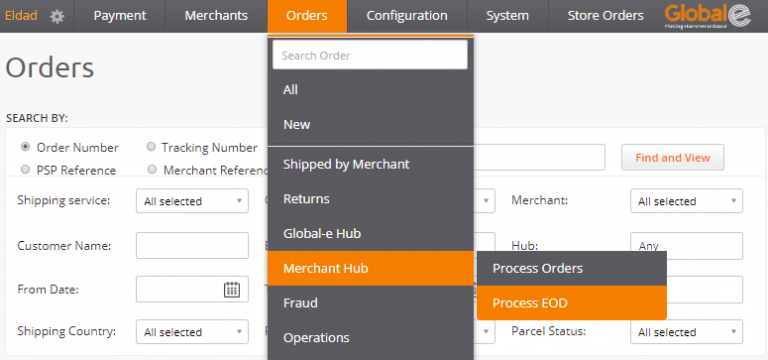
2. After DHL collects all the orders- proceed to the EOD process:

   **Orders ⇒ Merchant Hub ⇒ Process EOD**

   ( [https://web.global-e.com/GlobaleAdmin/NewHub/EndOfDayOrders](https://web.global-e.com/GlobaleAdmin/NewHub/EndOfDayOrders))
   <Frame>
     <img src="https://mintcdn.com/globale-nce/eLhOOxssApl6JeL0/images/uuid-bb4be41e-ed70-c24f-b534-91b8f7114a86.png?fit=max&auto=format&n=eLhOOxssApl6JeL0&q=85&s=745a14cc495611895aaf1a49b0ae1610" width="768" height="360" data-path="images/uuid-bb4be41e-ed70-c24f-b534-91b8f7114a86.png" />
   </Frame>

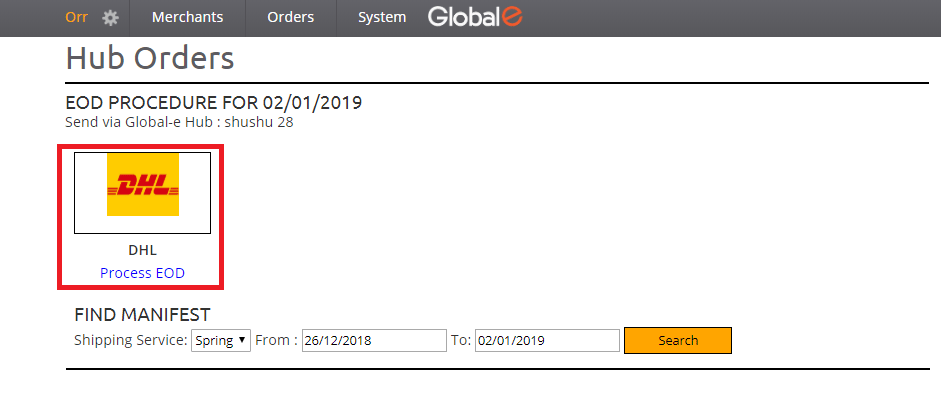
   The EOD form opens.

   All DHL orders that are in the status “received in hub” are included under this icon.
3. Click **Process EOD** below the DHL logo.
   <Frame>
     <img src="https://mintcdn.com/globale-nce/xv375Io-Zpy9CEM_/images/uuid-62010702-ba75-1ee4-31b3-78b5f025a357.png?fit=max&auto=format&n=xv375Io-Zpy9CEM_&q=85&s=2b25543842f541d10dcb229bed22ab0c" width="941" height="409" data-path="images/uuid-62010702-ba75-1ee4-31b3-78b5f025a357.png" />
   </Frame>
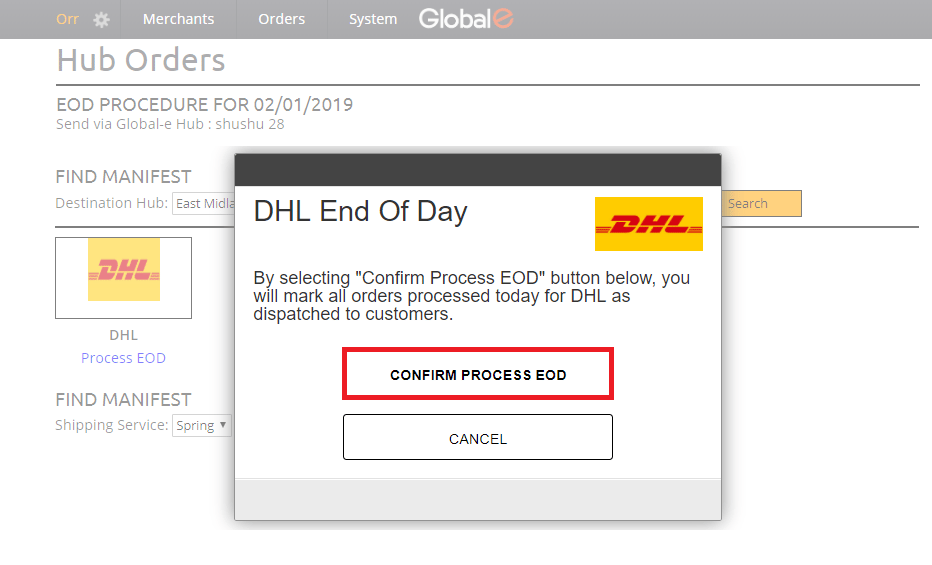
4. In the DHL End Of Day box, click **CONFIRM PROCESS EOD**.
   <Frame>
     <img src="https://mintcdn.com/globale-nce/BgPbIPN3eoW9Gg6s/images/uuid-1e825ede-0f76-d632-cda2-4c21b62d58dd.png?fit=max&auto=format&n=BgPbIPN3eoW9Gg6s&q=85&s=8f7aea6533d425ac2c42b605a99fbf4a" width="932" height="565" data-path="images/uuid-1e825ede-0f76-d632-cda2-4c21b62d58dd.png" />
   </Frame>

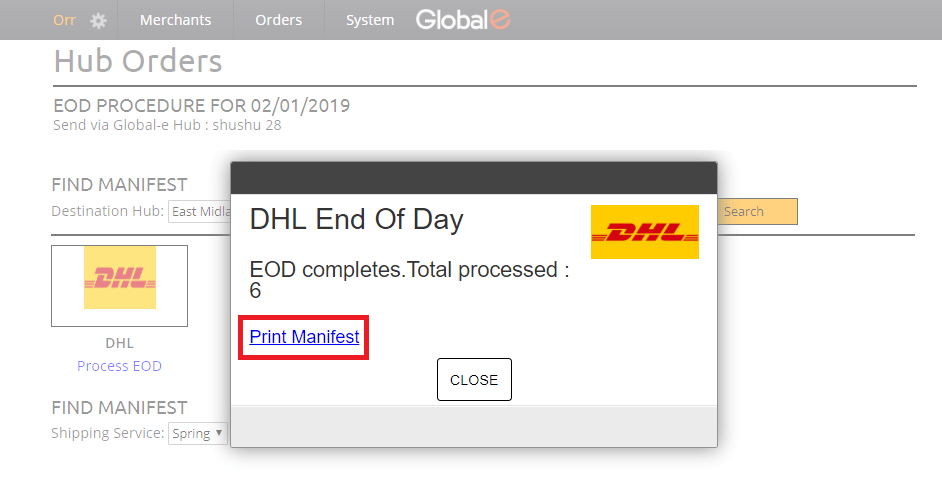
   The total number of orders processed is listed.
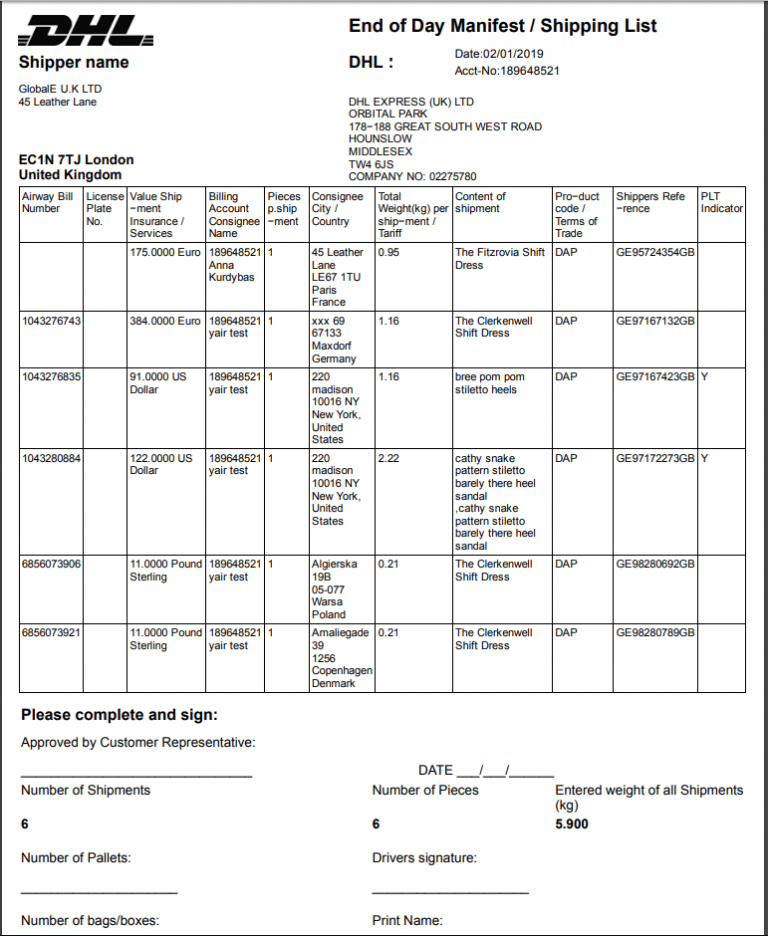
5. Click Print Manifest.
   <Frame>
     <img src="https://mintcdn.com/globale-nce/q28nt6TaYmhf9wTZ/images/uuid-d3f42230-dc0e-c1cf-5ef5-e6f901e4ebc8.png?fit=max&auto=format&n=q28nt6TaYmhf9wTZ&q=85&s=502cd8a2395fae9711bb7f2d7da3baa6" width="942" height="486" data-path="images/uuid-d3f42230-dc0e-c1cf-5ef5-e6f901e4ebc8.png" />
   </Frame>

   <Frame>
     <img src="https://mintcdn.com/globale-nce/Bp2mTKuI4zIQKDG5/images/uuid-893bb4d2-ad87-92fc-a74c-a253571bb3c9.png?fit=max&auto=format&n=Bp2mTKuI4zIQKDG5&q=85&s=c52d6ab06a0e5d582ba3d90fb8e68844" width="768" height="936" data-path="images/uuid-893bb4d2-ad87-92fc-a74c-a253571bb3c9.png" />
   </Frame>
6. Keep the manifest file as a reference.

During the EOD process, a notification is sent to the client.