> ## Documentation Index
> Fetch the complete documentation index at: https://nce-docs.bglobale.com/llms.txt
> Use this file to discover all available pages before exploring further.
# Creating a Discount
Create a new discount by adding and configuring a new cart rule.
## Adding a New Cart Rule
1. From the Magento dashboard go to **Marketing** > **Cart Price Rules**.
The **Cart Price Rules**page opens.
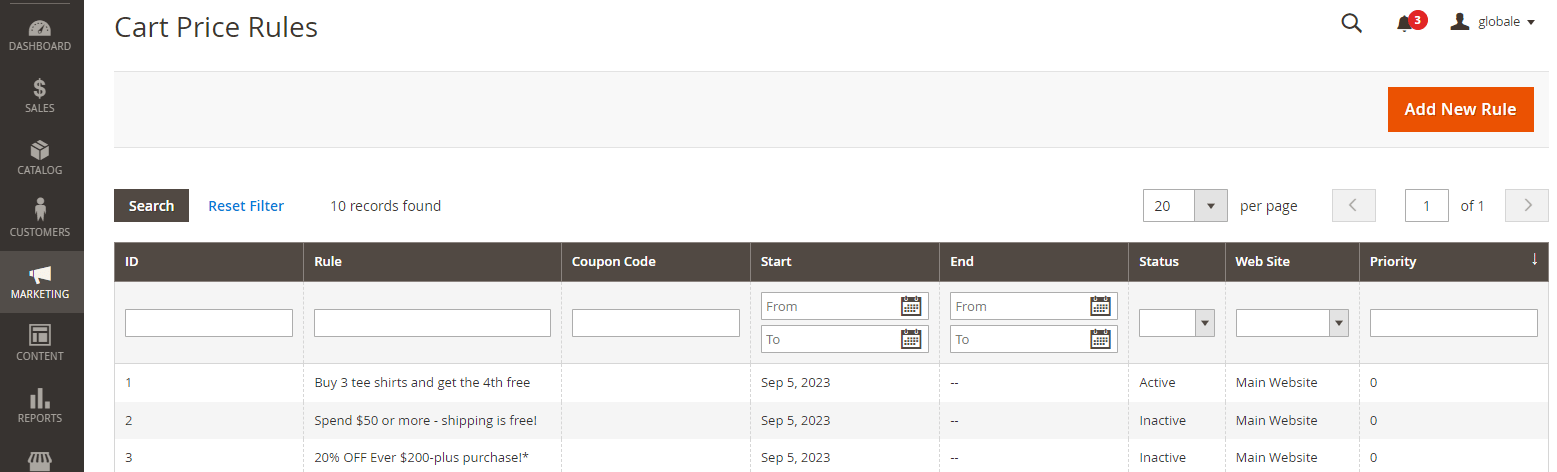 2. At the top-right, click **Add New Rule.**
The **New Cart Price Rule** page opens.
3. In the Rule Information section complete the following information:
1. Give your rule a name and description.
2. In the Rule Information section complete the following information:
Give your rule a name and description.
2. At the top-right, click **Add New Rule.**
The **New Cart Price Rule** page opens.
3. In the Rule Information section complete the following information:
1. Give your rule a name and description.
2. In the Rule Information section complete the following information:
Give your rule a name and description.
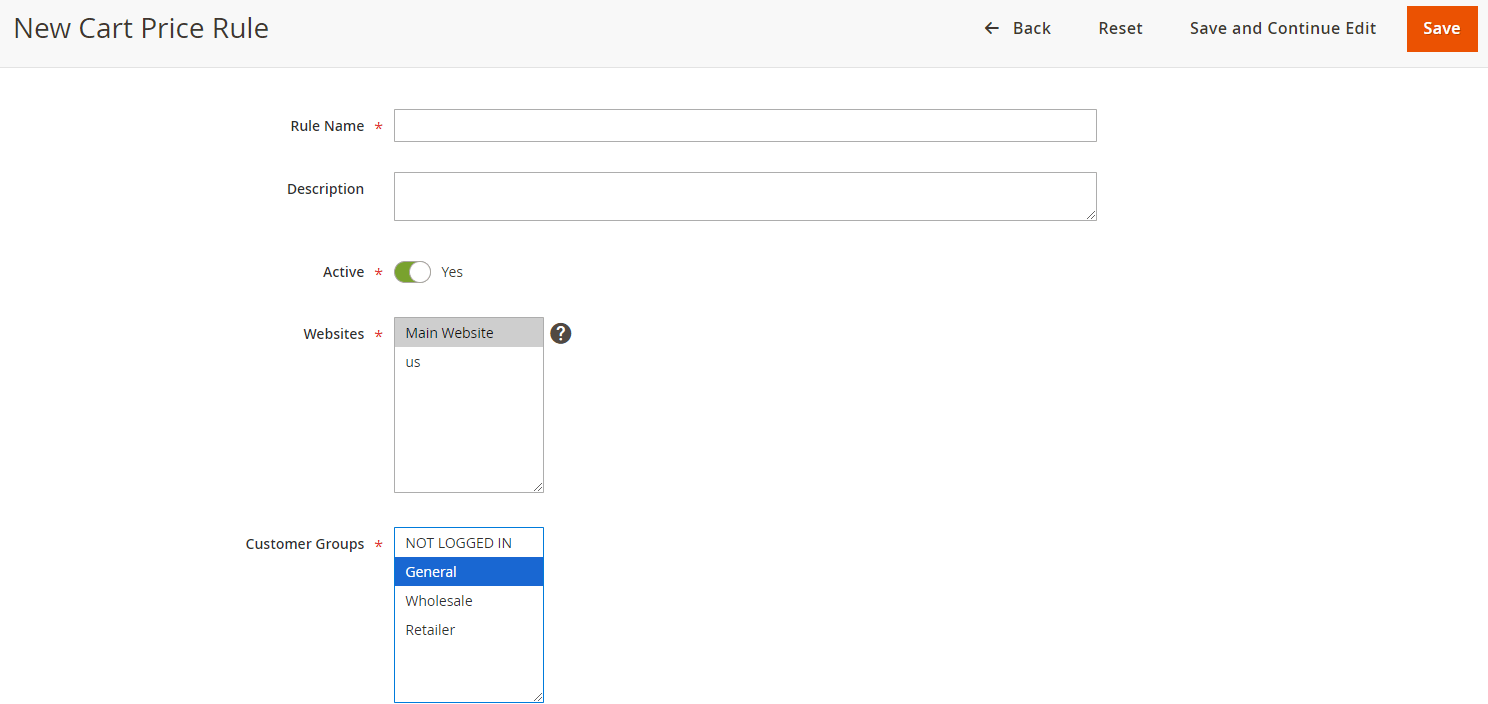 3. Ensure the **Active** option is set to **Yes** if you want the rule to go into effect immediately.
4. Select the websites where you want to activate the discount and the customer groups to which the discount applies.
5. Under Coupon, set the rule to apply with or without a coupon:
3. Ensure the **Active** option is set to **Yes** if you want the rule to go into effect immediately.
4. Select the websites where you want to activate the discount and the customer groups to which the discount applies.
5. Under Coupon, set the rule to apply with or without a coupon:
 * Select **No Coupon** to apply the cart rule to all cart items.
* Select **Specific Coupon** to associate a coupon with a price rule:
* Enter a Coupon Code that the customer must input to receive the discount.
* Set a limit on the number of times the coupon can be used (optional).
* Set a limit on the number of times a customer can use the coupon (optional).
6. Use the **Calendar** to select the start and end dates for the promotion.
7. In the **Priority** field, enter a number to define the priority of this rule.This is relevant if you have other coupon codes or cart rules for the same products simultaneously.
## Configuring the Cart Rule
1. In the **Conditions section**, configure conditions for the discount by selecting relevant options in the dropdown menu and entering data manually (e.g. figures) when needed.
2. Under the Actions section:
* Select **No Coupon** to apply the cart rule to all cart items.
* Select **Specific Coupon** to associate a coupon with a price rule:
* Enter a Coupon Code that the customer must input to receive the discount.
* Set a limit on the number of times the coupon can be used (optional).
* Set a limit on the number of times a customer can use the coupon (optional).
6. Use the **Calendar** to select the start and end dates for the promotion.
7. In the **Priority** field, enter a number to define the priority of this rule.This is relevant if you have other coupon codes or cart rules for the same products simultaneously.
## Configuring the Cart Rule
1. In the **Conditions section**, configure conditions for the discount by selecting relevant options in the dropdown menu and entering data manually (e.g. figures) when needed.
2. Under the Actions section:
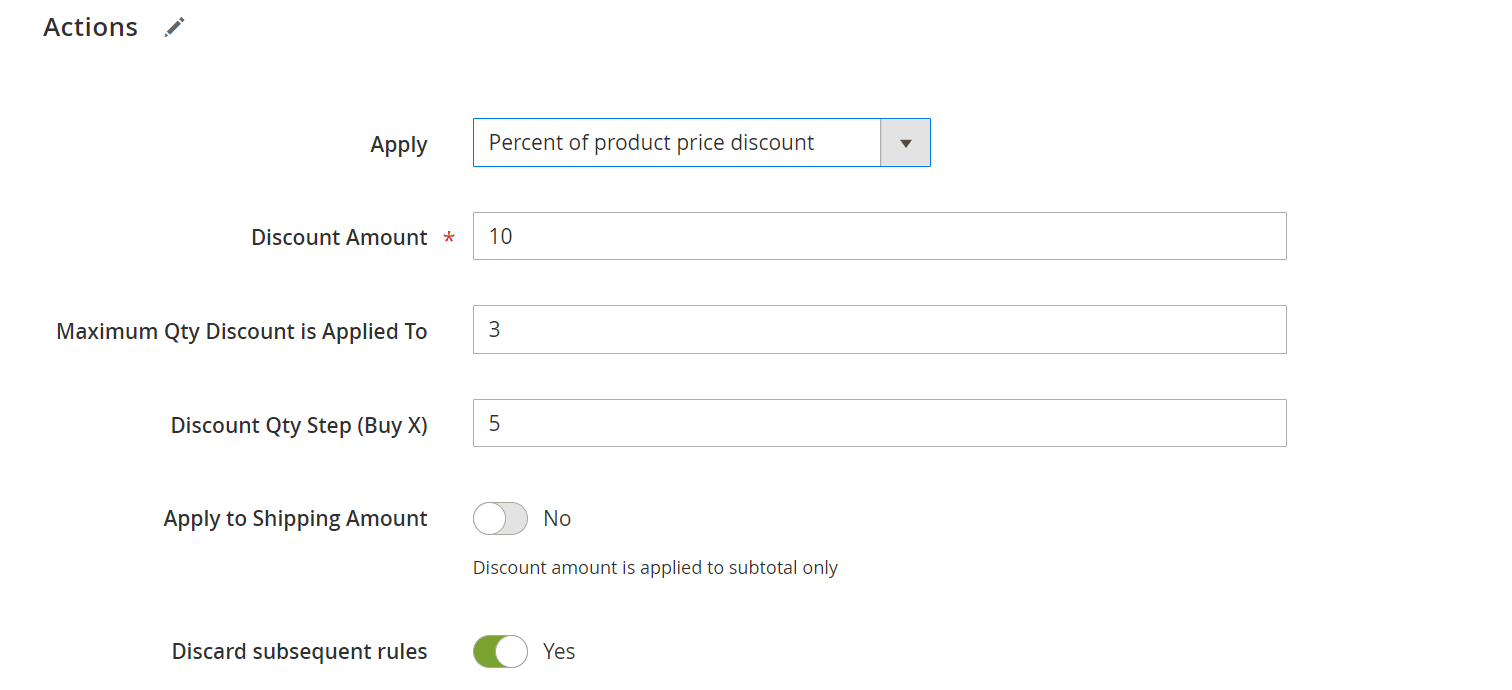 1. From the **Apply** dropdown menu select the desired discount:
* Percent of product per discount
* Fixed amount discount
* Fixed amount discount for the whole cart
* Buy X get Y freeBuy X get Y free
2. Enter a number amount for the selected discount:
* In the **Discount Amount** field, enter a number to indicate a percentage, fixed amount, or a quantity of items.
* In the **Discount Qty Step (Buy X)** field, enter the quantity the customer must purchase to receive the Buy X get Y Free discount.
* In the **Maximum Qty Discount is Applied To** field, enter the maximum quantity of the same product that can qualify for the discount in the same purchase.
The remaining options in this section are optional so you can fill them out if relevant to you.
3. Set **Apply to Shipping Amount**.
* Select yes if the discount applies separately to the subtotal and shipping amounts.
* Select No if the discount applies only to the subtotal.
4. Set **Discard subsequent rules** to **Yes** if you want to stop running other rules after this rule is applied.
This prevents multiple discounts from being applied to the same product.
3. Under the Actions section:
1. From the **Apply** dropdown menu select the desired discount:
* Percent of product per discount
* Fixed amount discount
* Fixed amount discount for the whole cart
* Buy X get Y free
2. Enter a number amount for the selected discount.
* In the **Discount Amount** field, enter a number to indicate a percentage, fixed amount, or a quantity of items.
* In the **Discount Qty Step (Buy X)** field, enter the quantity the customer must purchase to receive the Buy X get Y Free discount.
* In the **Maximum Qty Discount is Applied To** field, enter the maximum quantity of the same product that can qualify for the discount in the same purchase.
The remaining options in this section are optional so you can fill them out if relevant to you.
3. Set **Apply to Shipping Amount**.
4. Set **Discard subsequent rules** to **Yes** if you want to stop running other rules after this rule is applied.
This prevents multiple discounts from being applied to the same product.
4. In the label section, you can add custom labels to the discount. These are displayed on the checkout page.
5. In the **Manage Coupon Codes** section, you can generate a list of coupon codes by filling out the requested details.
1. From the **Apply** dropdown menu select the desired discount:
* Percent of product per discount
* Fixed amount discount
* Fixed amount discount for the whole cart
* Buy X get Y freeBuy X get Y free
2. Enter a number amount for the selected discount:
* In the **Discount Amount** field, enter a number to indicate a percentage, fixed amount, or a quantity of items.
* In the **Discount Qty Step (Buy X)** field, enter the quantity the customer must purchase to receive the Buy X get Y Free discount.
* In the **Maximum Qty Discount is Applied To** field, enter the maximum quantity of the same product that can qualify for the discount in the same purchase.
The remaining options in this section are optional so you can fill them out if relevant to you.
3. Set **Apply to Shipping Amount**.
* Select yes if the discount applies separately to the subtotal and shipping amounts.
* Select No if the discount applies only to the subtotal.
4. Set **Discard subsequent rules** to **Yes** if you want to stop running other rules after this rule is applied.
This prevents multiple discounts from being applied to the same product.
3. Under the Actions section:
1. From the **Apply** dropdown menu select the desired discount:
* Percent of product per discount
* Fixed amount discount
* Fixed amount discount for the whole cart
* Buy X get Y free
2. Enter a number amount for the selected discount.
* In the **Discount Amount** field, enter a number to indicate a percentage, fixed amount, or a quantity of items.
* In the **Discount Qty Step (Buy X)** field, enter the quantity the customer must purchase to receive the Buy X get Y Free discount.
* In the **Maximum Qty Discount is Applied To** field, enter the maximum quantity of the same product that can qualify for the discount in the same purchase.
The remaining options in this section are optional so you can fill them out if relevant to you.
3. Set **Apply to Shipping Amount**.
4. Set **Discard subsequent rules** to **Yes** if you want to stop running other rules after this rule is applied.
This prevents multiple discounts from being applied to the same product.
4. In the label section, you can add custom labels to the discount. These are displayed on the checkout page.
5. In the **Manage Coupon Codes** section, you can generate a list of coupon codes by filling out the requested details.
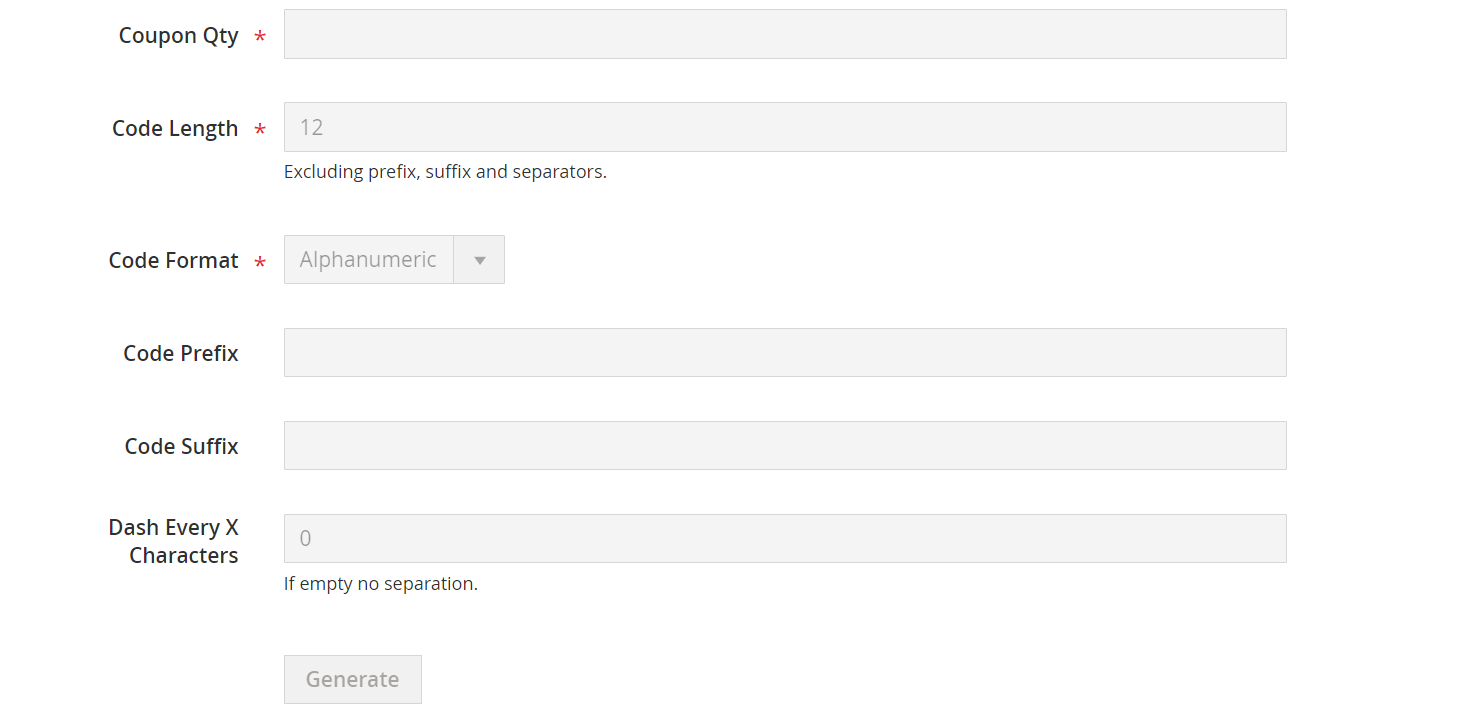 * **Coupons Qty**: The number of coupons that you want to generate.
* **Code Length**: The length of the code, not including the prefix, suffix, or separators.
* **Code Format**: Set it to one of the following:
* Alphanumeric
* Alphabetical
* Numeric
* **Code Prefix** (optional): To be added at the beginning of the code.
* **Code Suffix** (optional): To be added at the end of the code.
* **Dash Every X Characters**: (optional) If using a code with characters and dashes, here you select the number of characters that you want to have between each dash.
6. Click **Generate** to generate the codes.The list of codes appears at the bottom of the screen.
7. Click **Save**.
## Testing the Cart Rule
After completing the above procedures, you must test the rule to verify that it works correctly.
* **Coupons Qty**: The number of coupons that you want to generate.
* **Code Length**: The length of the code, not including the prefix, suffix, or separators.
* **Code Format**: Set it to one of the following:
* Alphanumeric
* Alphabetical
* Numeric
* **Code Prefix** (optional): To be added at the beginning of the code.
* **Code Suffix** (optional): To be added at the end of the code.
* **Dash Every X Characters**: (optional) If using a code with characters and dashes, here you select the number of characters that you want to have between each dash.
6. Click **Generate** to generate the codes.The list of codes appears at the bottom of the screen.
7. Click **Save**.
## Testing the Cart Rule
After completing the above procedures, you must test the rule to verify that it works correctly.