> ## Documentation Index
> Fetch the complete documentation index at: https://nce-docs.bglobale.com/llms.txt
> Use this file to discover all available pages before exploring further.
# Configuring Eligibility Conditions
**New Return Portal**
Eligibility conditions are return policy rule properties that determine which customers, orders, and items are eligible to be returned or exchanged in the **New Return Portal**. The platform evaluates eligibility using order, customer, item, and RMA-level conditions, and shows customers which items they can, or cannot, select.
**What You'll Accomplish**
* Understand how eligibility appears to customers in the **New Return Portal**.
* Configure eligibility conditions in the admin dashboard using return policy rules.
* Set up Tracking Fallback settings to prevent missing delivery dates from affecting eligibility logic.
* Test your setup safely using **Preview Mode** (no RMAs created).
**Requirements**
* Access to the **Admin Dashboard**
* Permissions to edit **Settings** (including **Return Policy** and **Store Settings**)
If you can’t see these menus, confirm your role/permissions with your team.
**Before You Start**
The following actions are recommended before you start:
* List all scenarios you want to allow or deny, such as *“Final sale items not eligible”* or *“Eligible for 30 days from delivery”.*
* Decide which eligibility level each scenario belongs to:
* **Order-level** (such as order creation/delivery date, order tags, payment type)
* **Customer-level** (such as location, customer type, customer tags)
* **Item-level** (such as item tags, price paid, discount code, vendor)
* **RMA-level** (such as total value or weight of items selected in the return)
To avoid logic conflicts, prefer **positive logic** (such as *“Eligible if delivered within 30 days”*) over negative logic (such as, *“Not eligible if not within 30 days”*).
**Viewing Eligibility in the New Return Portal**
This section describes how eligibility looks on the customer portal.
1. Access the **New Return Portal**.
2. Enter the customer’s order ID and the required identifier (email, ZIP, or phone number).
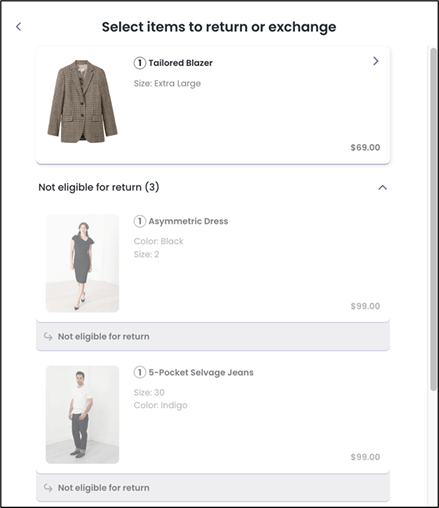
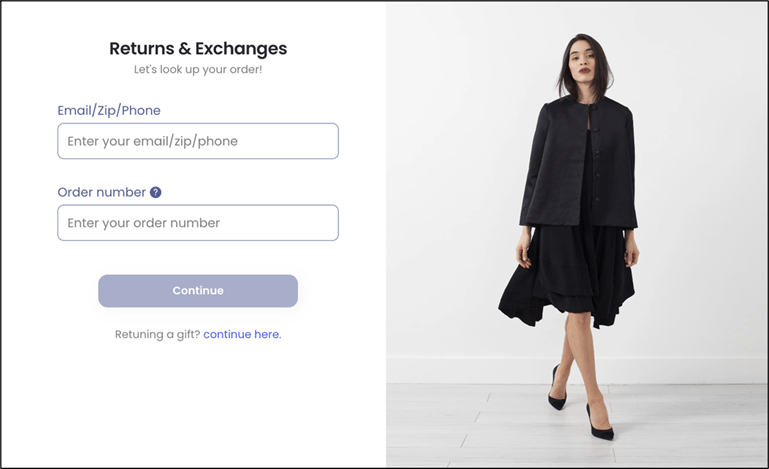 3. Load the order and review the item list:
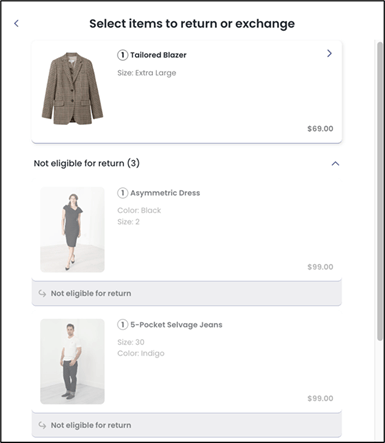
* Eligible items are selectable.
* Ineligible items are shown as not eligible and cannot be selected.
The following figure shows the item list:
3. Load the order and review the item list:
* Eligible items are selectable.
* Ineligible items are shown as not eligible and cannot be selected.
The following figure shows the item list:
 **Accessing Return Policy Rules on the Admin Dashboard**
1. Navigate to *Settings > Return Policy*.
2. Locate a policy rule.
**Creating a New Policy Rule**
1. Navigate to*Settings > Return Policy*.
2. Click **ADD RULE**.
3. On the **Details**page, configure the rule basics.
4. For example, you can configure **rule name**, **resolution**, r**eturn method**. Note that fields may vary by account.
5. At the bottom of the page, click **Eligibility**.
6. Navigate to *Settings > Return Policy*.
7. (Optional) Click **EXPAND ALL** to find the rule quickly.
8. Click the pencil icon to the far right correspond to the policy rule you want to edit.
9. Click **Eligibility**.
**Configuring Eligibility Conditions**
In the **Eligibility** section, you can build your rule using the supported eligibility levels:
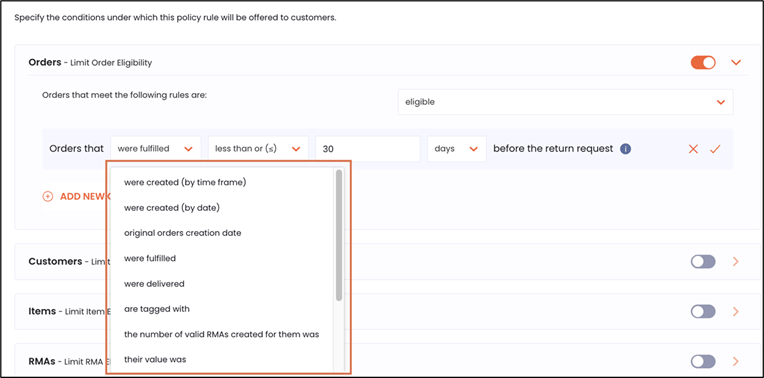
**Order-level**conditions (examples supported):
* Eligibility based on **order creation time frame**
* Eligibility based on **order creation date**
* Eligibility based on **original order creation date** (days or months)
* Eligibility based on**order fulfillment date** (if fulfillment date is missing, the fallback is o**rder creation date**)
* Eligibility based on **order delivery date** (if delivery date is missing, the fallback depends on **Tracking Fallback** settings)
* Eligibility based on **order custom attributes** (all/some/none; comma-separated; not case sensitive)
* Eligibility based on **the number of RMAs created** (for the order)
* Eligibility based on **order value**
* Eligibility based on **payment type** (including whether paid with gift cards: only/partially/without)
* Eligibility based on**included items**
* Eligibility based on **custom attribute**
* Eligibility based on **purchase source** or sales channel
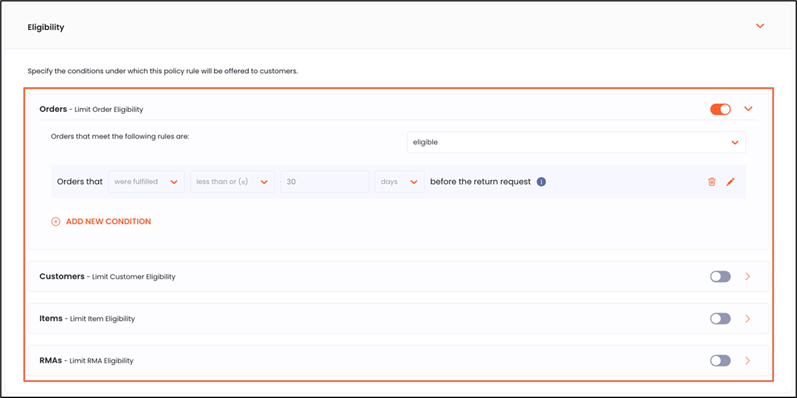
The figure below shows the eligibility conditions:
**Accessing Return Policy Rules on the Admin Dashboard**
1. Navigate to *Settings > Return Policy*.
2. Locate a policy rule.
**Creating a New Policy Rule**
1. Navigate to*Settings > Return Policy*.
2. Click **ADD RULE**.
3. On the **Details**page, configure the rule basics.
4. For example, you can configure **rule name**, **resolution**, r**eturn method**. Note that fields may vary by account.
5. At the bottom of the page, click **Eligibility**.
6. Navigate to *Settings > Return Policy*.
7. (Optional) Click **EXPAND ALL** to find the rule quickly.
8. Click the pencil icon to the far right correspond to the policy rule you want to edit.
9. Click **Eligibility**.
**Configuring Eligibility Conditions**
In the **Eligibility** section, you can build your rule using the supported eligibility levels:
**Order-level**conditions (examples supported):
* Eligibility based on **order creation time frame**
* Eligibility based on **order creation date**
* Eligibility based on **original order creation date** (days or months)
* Eligibility based on**order fulfillment date** (if fulfillment date is missing, the fallback is o**rder creation date**)
* Eligibility based on **order delivery date** (if delivery date is missing, the fallback depends on **Tracking Fallback** settings)
* Eligibility based on **order custom attributes** (all/some/none; comma-separated; not case sensitive)
* Eligibility based on **the number of RMAs created** (for the order)
* Eligibility based on **order value**
* Eligibility based on **payment type** (including whether paid with gift cards: only/partially/without)
* Eligibility based on**included items**
* Eligibility based on **custom attribute**
* Eligibility based on **purchase source** or sales channel
The figure below shows the eligibility conditions:
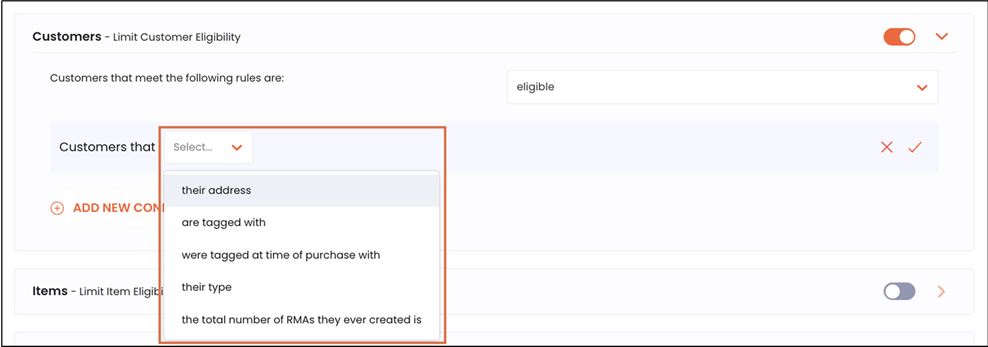
 **Customer-level** conditions (examples supported):
* Eligibility based on the **customer’s location** (uses OR logic across selected locations)
* Eligibility based on **customer attribute** (current attributes)
* Eligibility based on**customer type** (Registered/Guest)
* Eligibility based on the **number of RMAs created by the customer**
The following figure shows the customer-level conditions:
**Customer-level** conditions (examples supported):
* Eligibility based on the **customer’s location** (uses OR logic across selected locations)
* Eligibility based on **customer attribute** (current attributes)
* Eligibility based on**customer type** (Registered/Guest)
* Eligibility based on the **number of RMAs created by the customer**
The following figure shows the customer-level conditions:
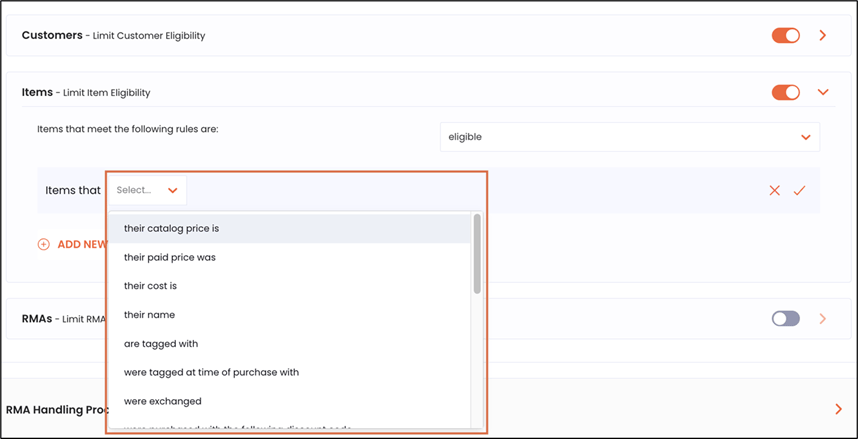
 **Item-level** conditions (examples supported):
* **Catalog price, paid price, cost**
* **Item name** (contains/is and opposites; comma-separated; not case sensitive)
* **Item attributes**
* **Number of exchanges**
* **Discount codes** (contains/is and opposites)
* **Discount value** (amount/percentage/comparative price percentage)
* **Total compare-at price and discount %** (discount codes not included)
* **Return reason** (limit offered resolutions based on the selected reason)
* **Item weight, vendor, collection ID, custom attribute** (key/value)
* **Item fulfillment**
* **Percentage of the order value**
**Item-level** conditions (examples supported):
* **Catalog price, paid price, cost**
* **Item name** (contains/is and opposites; comma-separated; not case sensitive)
* **Item attributes**
* **Number of exchanges**
* **Discount codes** (contains/is and opposites)
* **Discount value** (amount/percentage/comparative price percentage)
* **Total compare-at price and discount %** (discount codes not included)
* **Return reason** (limit offered resolutions based on the selected reason)
* **Item weight, vendor, collection ID, custom attribute** (key/value)
* **Item fulfillment**
* **Percentage of the order value**
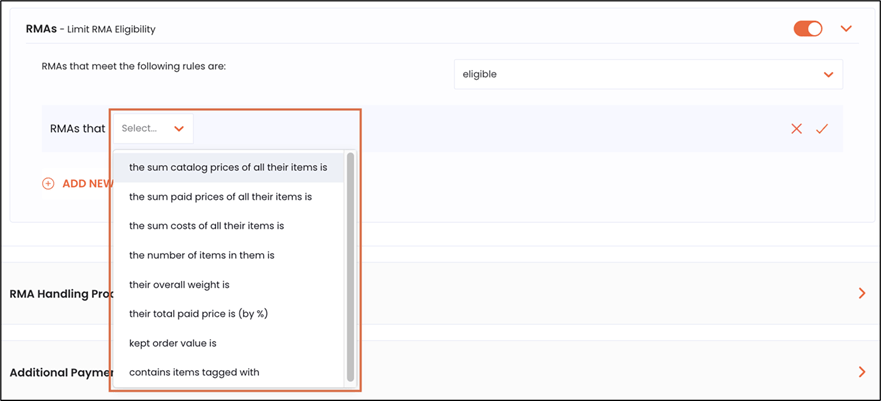
 **RMA-level**conditions (examples supported):
* Total **listed price**, total **paid price**, total **cost**
* **Number of items** being returned (raw item count)
* Overall **weight**
* **Percentage of the order value**
* **Kept order value**
**RMA-level**conditions (examples supported):
* Total **listed price**, total **paid price**, total **cost**
* **Number of items** being returned (raw item count)
* Overall **weight**
* **Percentage of the order value**
* **Kept order value**
 Eligibility is evaluated across all four levels. If **any**level results in **not eligible**, the policy rule will not be applied to that item.
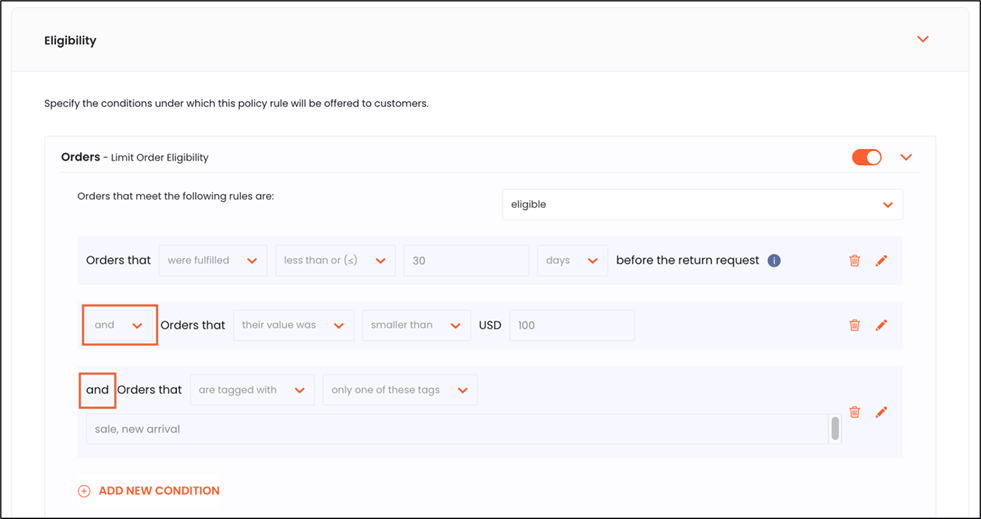
 **AND/OR limitation:** You can’t combine **AND**and **OR**within the same eligibility level. Each level must use either all ANDs or all ORs. For complex logic, split conditions across multiple eligibility rules or different eligibility levels.
 **Activating and Saving Policy Rules**
This section describes how to activate and save policy rules.
1. Enable **Activate Policy Rule**.
2. Click the **save**icon located in the top right corner of the page.
Saved changes will not affect the **New Return Portal** unless the rule is activated.
**Configuring Tracking Fallback**
This is an optional, but **highly recommended**, configuration. Configuring tracking fallback is used for delivery-based eligibility.
If you use eligibility based on **order delivery date** and delivery dates may be missing, configure **Tracking Fallback** to ensure that eligibility checks run as expected.
1. Navigate to *Settings > Genera*l.
2. Expand the **Tracking Fallback** section.
3. Set **When to refer to orders to Delivered**.
Used when checking eligibility conditions, such as **Orders that were delivered…**, with a missing delivery date.
4. Set **When to refer to in-transit return shipments as Delivered**.
This is used for automations triggered by a return shipment’s status.
5. Click the **save**icon in the top right corner of the page.
**Running Step-by-Step Verification**
This section describes how to run step-by-step verification.
1. Test safely using **Preview Mode**:
1. Navigate to the Admin Dashboard **Home**page.
2. Click **PREVIEW MODE**.
A new tab opens with the **New Return Portal** and a **Preview Mode** label (top right-hand corner of the page).
**Activating and Saving Policy Rules**
This section describes how to activate and save policy rules.
1. Enable **Activate Policy Rule**.
2. Click the **save**icon located in the top right corner of the page.
Saved changes will not affect the **New Return Portal** unless the rule is activated.
**Configuring Tracking Fallback**
This is an optional, but **highly recommended**, configuration. Configuring tracking fallback is used for delivery-based eligibility.
If you use eligibility based on **order delivery date** and delivery dates may be missing, configure **Tracking Fallback** to ensure that eligibility checks run as expected.
1. Navigate to *Settings > Genera*l.
2. Expand the **Tracking Fallback** section.
3. Set **When to refer to orders to Delivered**.
Used when checking eligibility conditions, such as **Orders that were delivered…**, with a missing delivery date.
4. Set **When to refer to in-transit return shipments as Delivered**.
This is used for automations triggered by a return shipment’s status.
5. Click the **save**icon in the top right corner of the page.
**Running Step-by-Step Verification**
This section describes how to run step-by-step verification.
1. Test safely using **Preview Mode**:
1. Navigate to the Admin Dashboard **Home**page.
2. Click **PREVIEW MODE**.
A new tab opens with the **New Return Portal** and a **Preview Mode** label (top right-hand corner of the page).
 3. Enter a real order ID and test different scenarios (eligible vs not eligible items).
Preview Mode lets you test without creating RMAs or sending notifications.
2. Confirm the customer-facing behavior in the **New Return Portal**:
1. Verify that eligible items are selectable, and ineligible items are marked **not eligible**.
2. Confirm the specific scenario you configured (such as date window, tags, reason, etc.) behaves as expected.
3. Enter a real order ID and test different scenarios (eligible vs not eligible items).
Preview Mode lets you test without creating RMAs or sending notifications.
2. Confirm the customer-facing behavior in the **New Return Portal**:
1. Verify that eligible items are selectable, and ineligible items are marked **not eligible**.
2. Confirm the specific scenario you configured (such as date window, tags, reason, etc.) behaves as expected.
 3. Do one of the following:
* **If you created a real RMA** - in the Admin Dashboard, verify your eligibility settings.
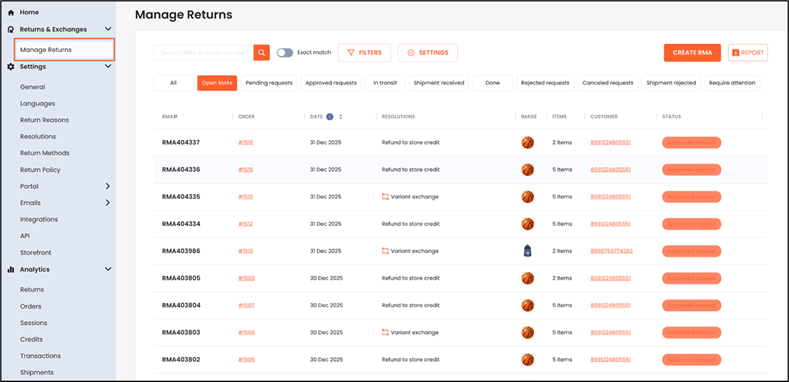
* **If you tested outside of Preview Mode and submitted a real return** - navigate to **Manage Returns** and open the RMA to review what was returned and the results.
3. Do one of the following:
* **If you created a real RMA** - in the Admin Dashboard, verify your eligibility settings.
* **If you tested outside of Preview Mode and submitted a real return** - navigate to **Manage Returns** and open the RMA to review what was returned and the results.
 **Reports and Analyses**
Eligibility controls what customers can select in the **New Return Portal** and which **policy rules** apply. If you need analytics or export specifics for returns created under certain rules, confirm which reporting views are enabled in your Admin Dashboard (Analytics, exports, etc.).
**Troubleshooting Common Issues**
This section describes how to troubleshoot common issues:
| Issue | Solution |
| ------------------------------------------ | ------------------------------------------------------------------------------------------------------------------------------------- |
| Nothing changes in the New Return Portal | Confirm the rule is toggled **Activate Policy Rule** = ON and saved (save icon). |
| Delivery-based rules behave inconsistently | Configure Tracking Fallback so missing delivery dates don’t block eligibility checks. |
| Complex logic not working | You can’t mix AND and OR within the same eligibility level. Split logic across multiple rules or levels. |
| Expected item data is missing | Deleted/null items aren’t supported for eligibility checks (no item data to process a return). |
| Tag rules not matching | Tags are not case sensitive; comma-separated values represent “A or B or C.” Also confirm whether the condition checks all/some/none. |
**Frequently Asked Questions**
This section includes some frequently asked questions and their answers.
## How are multiple eligibility levels combined?
If any eligibility level (order/customer/item/RMA) evaluates to not eligible, the policy rule won’t apply to that item.
## Can I use AND and OR together in the same eligibility level?
No. AND/OR cannot be combined within the same eligibility level.
## What happens if delivery date is missing?
Delivery-based eligibility uses your Tracking Fallback settings.
**Reports and Analyses**
Eligibility controls what customers can select in the **New Return Portal** and which **policy rules** apply. If you need analytics or export specifics for returns created under certain rules, confirm which reporting views are enabled in your Admin Dashboard (Analytics, exports, etc.).
**Troubleshooting Common Issues**
This section describes how to troubleshoot common issues:
| Issue | Solution |
| ------------------------------------------ | ------------------------------------------------------------------------------------------------------------------------------------- |
| Nothing changes in the New Return Portal | Confirm the rule is toggled **Activate Policy Rule** = ON and saved (save icon). |
| Delivery-based rules behave inconsistently | Configure Tracking Fallback so missing delivery dates don’t block eligibility checks. |
| Complex logic not working | You can’t mix AND and OR within the same eligibility level. Split logic across multiple rules or levels. |
| Expected item data is missing | Deleted/null items aren’t supported for eligibility checks (no item data to process a return). |
| Tag rules not matching | Tags are not case sensitive; comma-separated values represent “A or B or C.” Also confirm whether the condition checks all/some/none. |
**Frequently Asked Questions**
This section includes some frequently asked questions and their answers.
## How are multiple eligibility levels combined?
If any eligibility level (order/customer/item/RMA) evaluates to not eligible, the policy rule won’t apply to that item.
## Can I use AND and OR together in the same eligibility level?
No. AND/OR cannot be combined within the same eligibility level.
## What happens if delivery date is missing?
Delivery-based eligibility uses your Tracking Fallback settings.