> ## Documentation Index
> Fetch the complete documentation index at: https://nce-docs.bglobale.com/llms.txt
> Use this file to discover all available pages before exploring further.
# Configuring Auto-Refunds
Auto-refund issues refunds based on events (immediate or delayed) you select, and is configured per policy rule.
1. Complete accessing your policy rules.
2. In the dropdown menu located to the right of **Refund Process**, select **Automatic**.The **Trigger** and **Execute** dropdown menus are displayed.
3. Set the **Trigger** event:
* RMA is approved
* Shipment is in transit
* Shipment has been received
* Items have been validated
The available trigger options vary according to trigger selection and account. For example, selecting Items have been disabled displays the **Validation** dropdown menu.
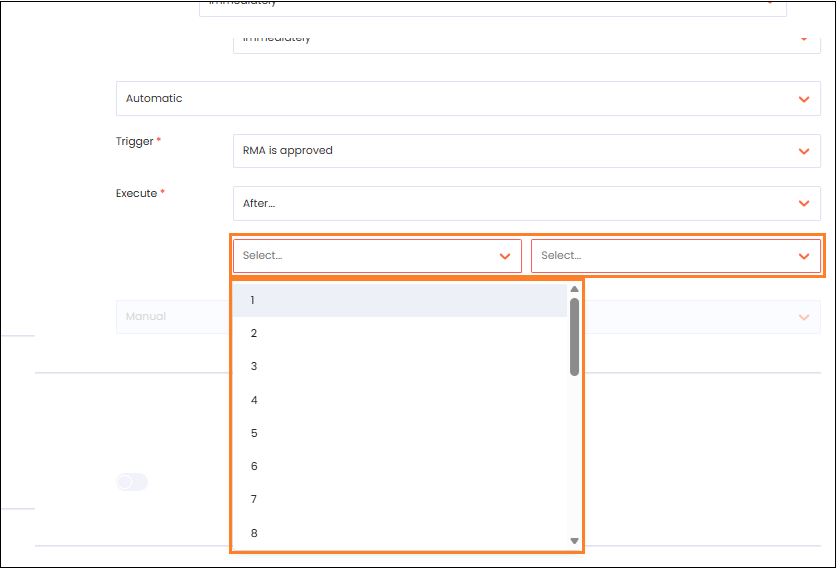
4. In the **Execute** field, select one of the following:
* Immediately
* After...
5. Do one of the following:
* If you selected Immediately, skip to [Step 6](/configuring-auto-refunds#UUID-687a5591-2de5-c46e-eba6-226a82cb34d3_N1770641939897).
* If you selected **After...**, set the following:
* Number value
* Time unit
 6. Click the **save icon**.
The save icon is only displayed when you change your Approval Process selection.
6. Click the **save icon**.
The save icon is only displayed when you change your Approval Process selection.