> ## Documentation Index
> Fetch the complete documentation index at: https://nce-docs.bglobale.com/llms.txt
> Use this file to discover all available pages before exploring further.
# Installing the Global-e Extension for WooCommerce
## Prerequisites
The extension setup requires:
* A user on your server with permissions to run CLI commands.
* A WordPress administrator account
* A Global‑e merchant account
## Overview
Global‑e provides you with a zipped file for installing the WooCommerce extension. Make sure you have your Merchant information available to perform this installation.
You can install the Global-e WooCommerce extension using one of the following methods:
* [Extracting the zip file to the server](/3--installing-the-global-e-extension-for-woocommerce#UUID-89a67f9b-23f0-b80a-6da9-c6f68711cd21_procedure-id235219302616858)
* [Uploading the File as a Plugin](/3--installing-the-global-e-extension-for-woocommerce#UUID-89a67f9b-23f0-b80a-6da9-c6f68711cd21_N1760966888559)
* [Installing the Plugin from the WordPress Marketplace](/3--installing-the-global-e-extension-for-woocommerce#UUID-89a67f9b-23f0-b80a-6da9-c6f68711cd21_N1760966903027)
### Extracting the Zip File to the Server
You can deactivate and reactivate the extension after installation if required. See Step 3 below.
1. Extract the Global‑e WooCommerce extension's zip file onto the server where WordPress is installed.
2. Copy: global-e-cross-border-for-woocommerce/ to
To: `<` `wp` `_root` `>/` `wp-content` `/` `plugins` `/`
The Global‑e plugin is now installed under `WooCommerce > Plugins > Installed Plugins >` and the Global‑e *includes* are activated.
 3. (Optional) Navigate to WooCommerce > Plugins > Installed Plugins.
4. In the Global-e Cross-Border for WooCommerce section, do one of the following:
* Click **Deactivate** to disable the plugin *Global--e CSS and JavaScript includes* in WooCommerce.
* Click **Activate** to install the plugin *Global--e CSS and JavaScript includes* in WooCommerce.
### Uploading the File as a Plugin
1. Log in to WooCommerce administration.
2. Navigate to **Plugins**.
3. Select **Add New Plugin**.
3. (Optional) Navigate to WooCommerce > Plugins > Installed Plugins.
4. In the Global-e Cross-Border for WooCommerce section, do one of the following:
* Click **Deactivate** to disable the plugin *Global--e CSS and JavaScript includes* in WooCommerce.
* Click **Activate** to install the plugin *Global--e CSS and JavaScript includes* in WooCommerce.
### Uploading the File as a Plugin
1. Log in to WooCommerce administration.
2. Navigate to **Plugins**.
3. Select **Add New Plugin**.
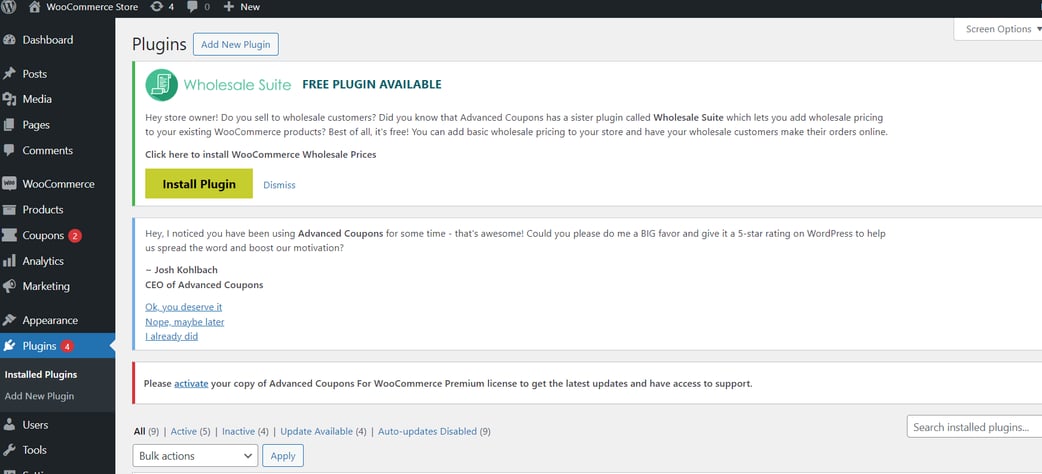 4. Click **Upload Plugin**.
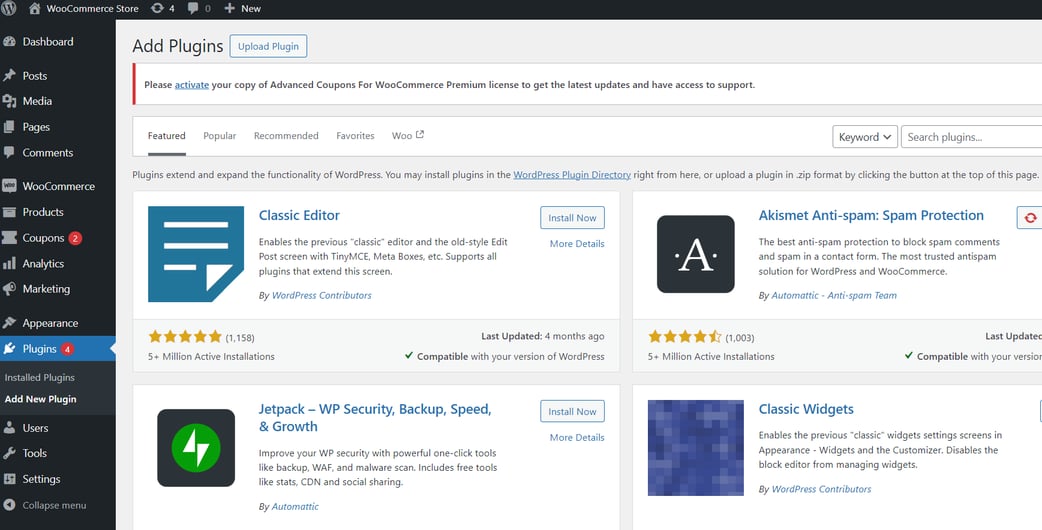 5. Click **Choose File** and select **WooCommerce zip file**.
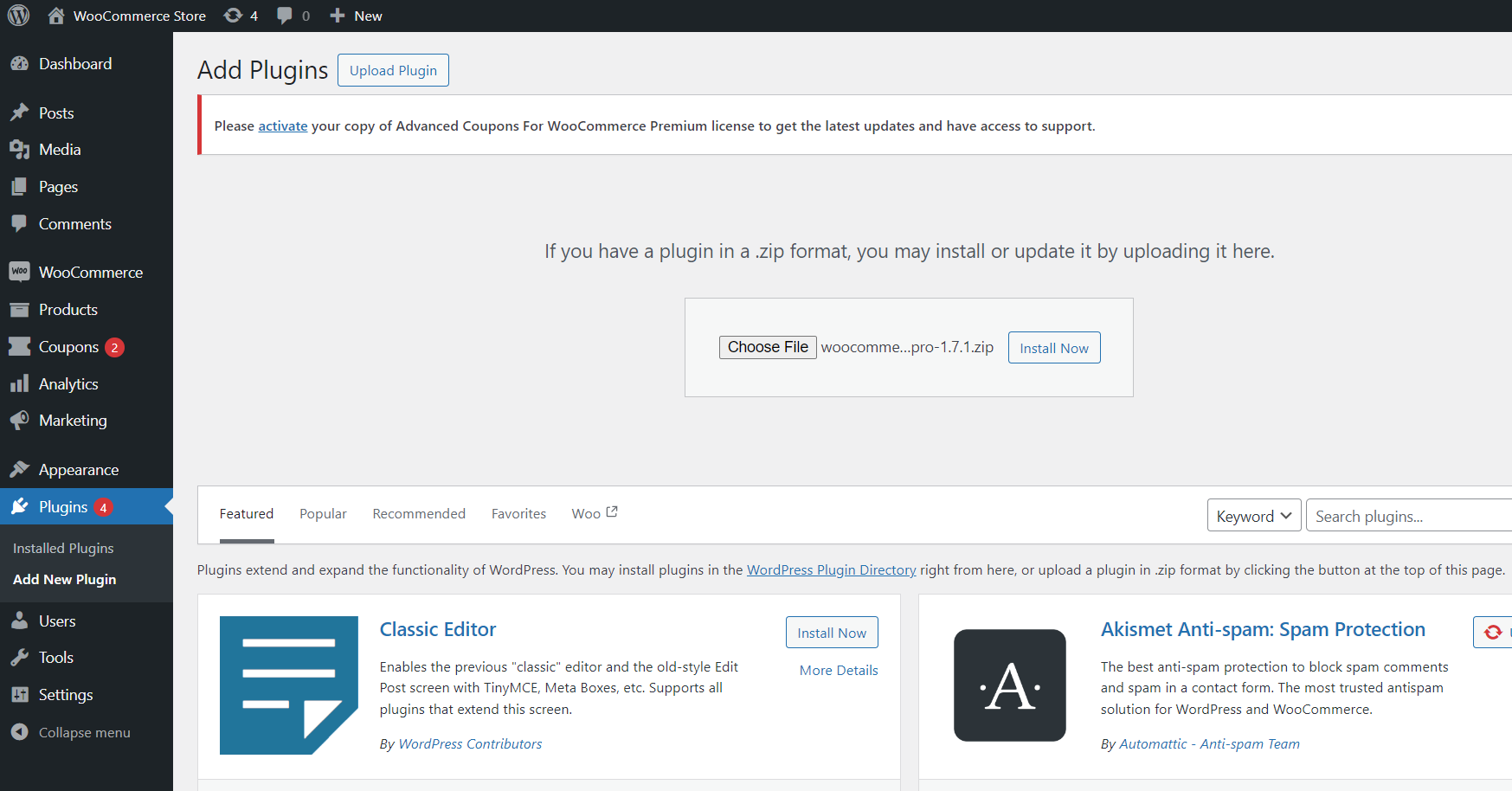 6. Click**Install Now**.
### Installing the Plugin from the WordPress Marketplace
1. Log in to Wordpress admin.
2. Navigate to Plugins > Add New Plugin and search for Global-e Cross-Border Integration for WooCommerce.
3. Locate the Global-e Cross-Border integration for WooCommerce app and click Install Now.
If you are using an older version of WooCommerce Global-e PRO Integration plugin, disable it before installing the new version. The new version (Global-e Cross-Border integration for WooCommerce) adopts the existing settings.
### Upgrading The Global-e Plugin
When a new version of the **Global-e Plugin for WordPress** is released in the Marketplace, a notification appears in **Plugins**.
6. Click**Install Now**.
### Installing the Plugin from the WordPress Marketplace
1. Log in to Wordpress admin.
2. Navigate to Plugins > Add New Plugin and search for Global-e Cross-Border Integration for WooCommerce.
3. Locate the Global-e Cross-Border integration for WooCommerce app and click Install Now.
If you are using an older version of WooCommerce Global-e PRO Integration plugin, disable it before installing the new version. The new version (Global-e Cross-Border integration for WooCommerce) adopts the existing settings.
### Upgrading The Global-e Plugin
When a new version of the **Global-e Plugin for WordPress** is released in the Marketplace, a notification appears in **Plugins**.
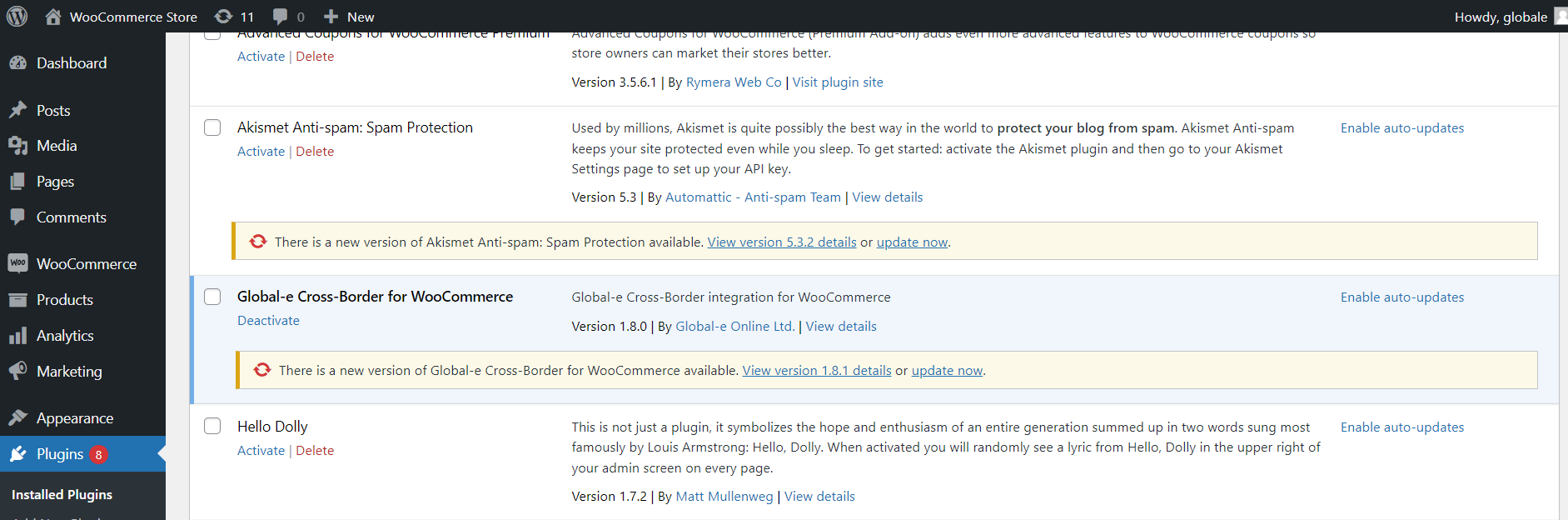 1. Click **Plugins**.
2. Locate the **Global-e Cross-Border for WooCommerce** app and click**Update Now**.The newest version of the app is downloaded.
1. Click **Plugins**.
2. Locate the **Global-e Cross-Border for WooCommerce** app and click**Update Now**.The newest version of the app is downloaded.